Check Your Spending/ATM Withdrawal Limits
Check Your Spending Power and Select Your Payment Crypto Asset
View Your Bybit Card Transaction History
View Your Card Details
Check Your Spending/ATM Withdrawal Limits
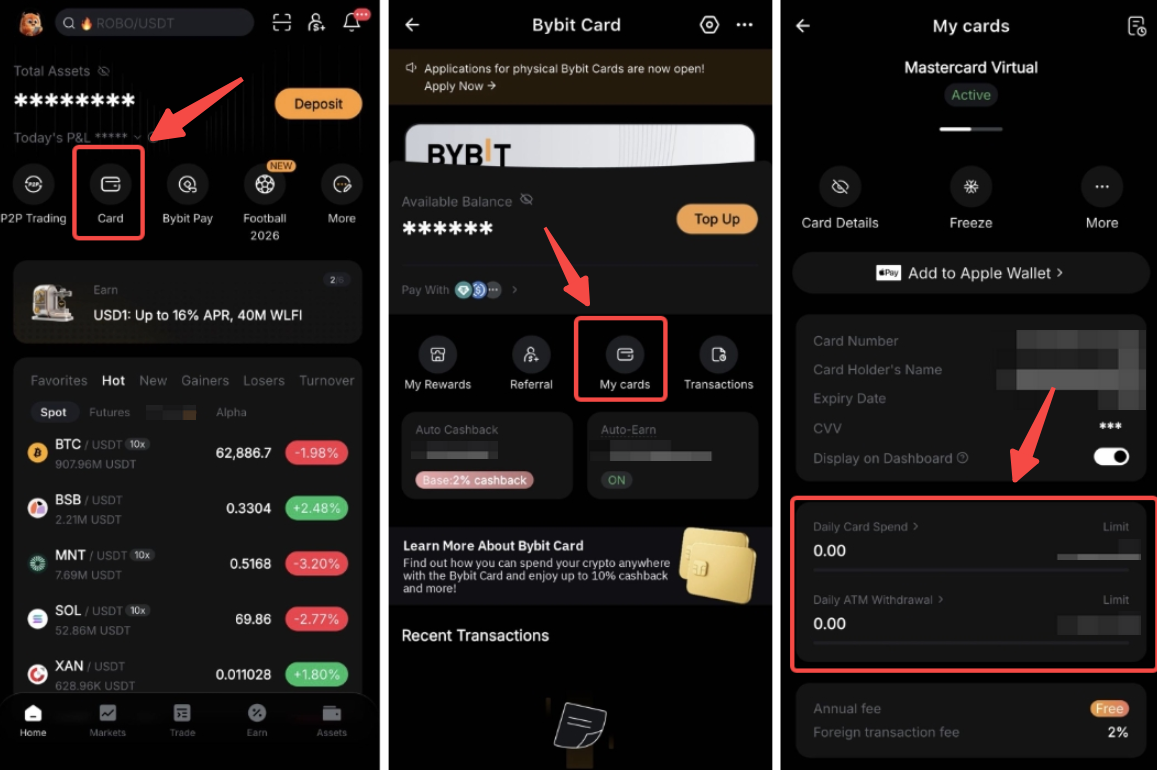
Log in to your Bybit Kazakhstan App and click on Card → My cards. Then, scroll down to Daily card spend/Daily ATM withdrawal to view your current spending amount and limits.
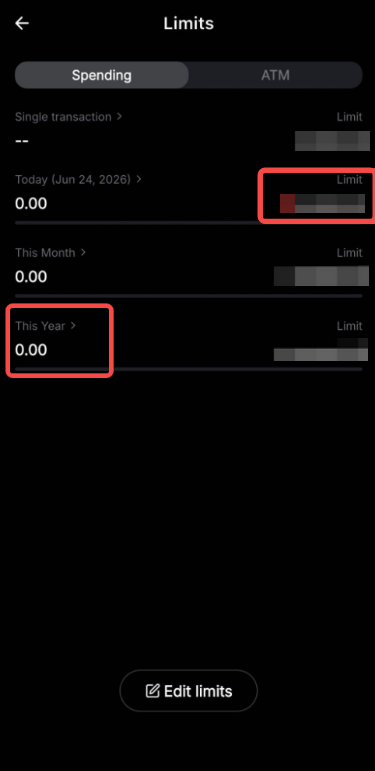
You can also click on each amount to view your Bybit Card's daily, monthly and yearly spending limits as well the remaining quota for each period. Select the ATM tab to view your physical Bybit Card's ATM withdrawal and the remaining quota.
Check Your Spending Power and Select Your Payment Crypto Asset
The Spending Power is the estimated amount of funds you can spend. This amount is calculated from the available balance of the base currency in your Funding Account and your selected payment crypto asset converted to your base currency.
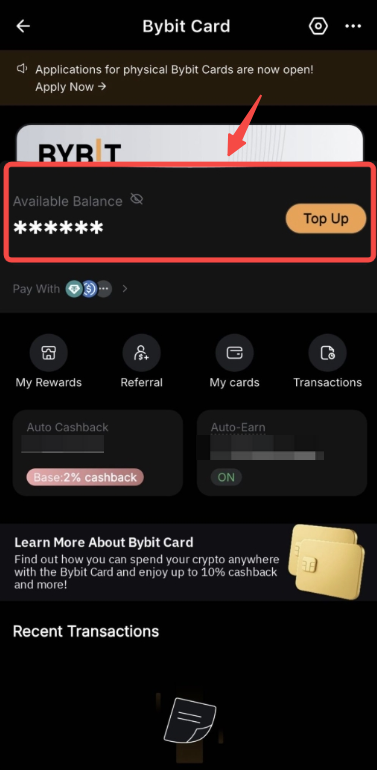
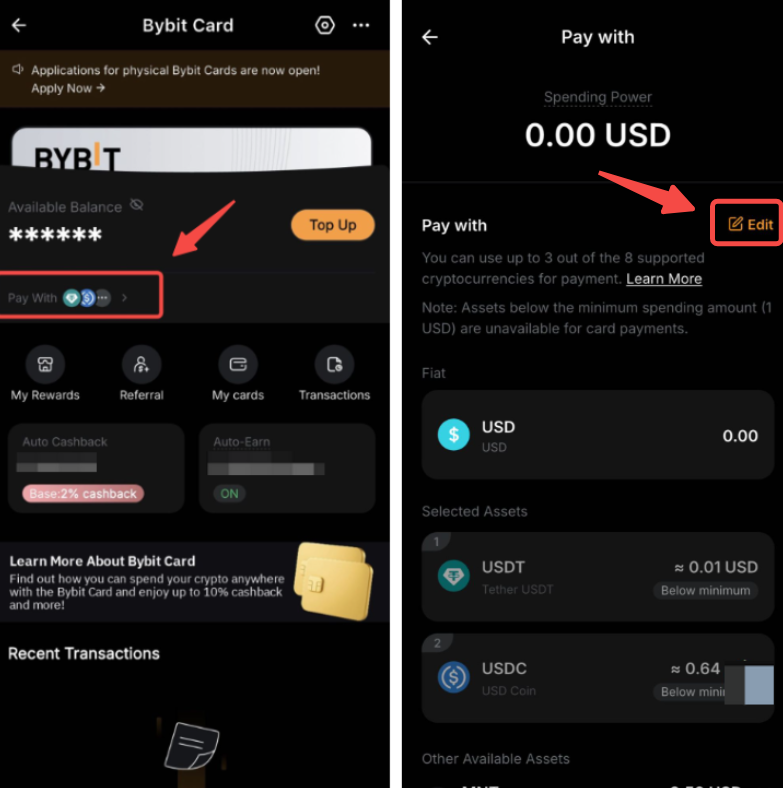
You may select up to 3 types of cryptocurrencies for your Bybit Card transactions, and the default payment priority is USDC > BTC > ETH > MNT > TON > XRP. Customize your preferences by clicking on Pay With → Edit. You can rearrange the order or add/remove coins. The system will follow your payment priority during transactions.
View Your Bybit Card Transaction History
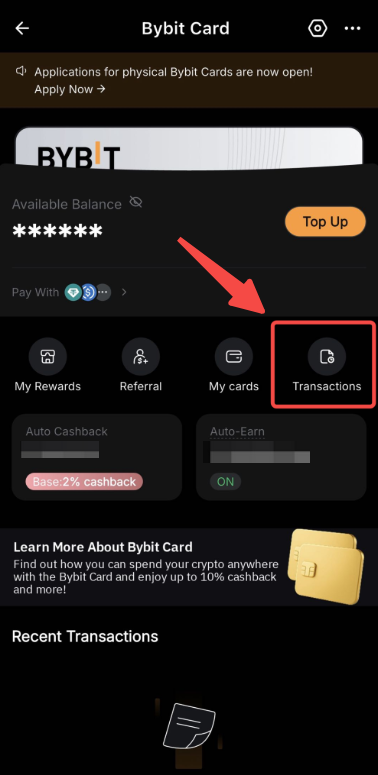
Step 1: Please head to the Bybit Card page and tap on Transactions.
Step 2: On the Transaction History page, you can view your transaction details under Transaction and Authorization. You can use the filter types below to find more precisely the transaction records you wish to view.
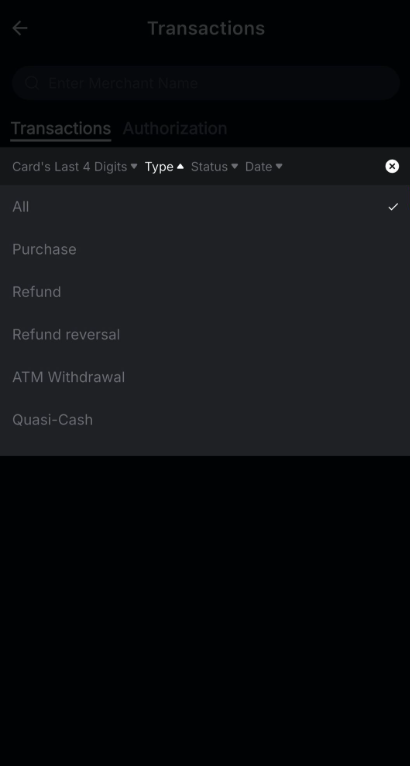
Here's more information about Transaction and Authorization.
Transaction: This section displays completed transactions and the transaction amount that was authorized has been deducted from your Funding Account.
Authorization: This section displays the approval from Mastercard, indicating that the user has sufficient funds to cover the cost of the transaction. In the case of a reversal, the authorized (frozen) amount in your Funding Account will be unfrozen. Authorisation reversals are usually initiated by the merchants. You may contact the merchants for more information.
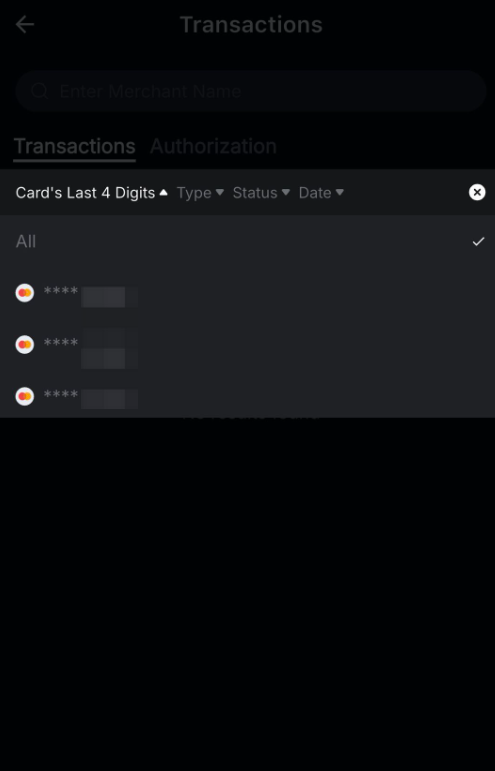
Note: The transaction history includes both virtual and physical cards. You may filter them by the last 4 digits of your card if you prefer to view either one of the card transactions.
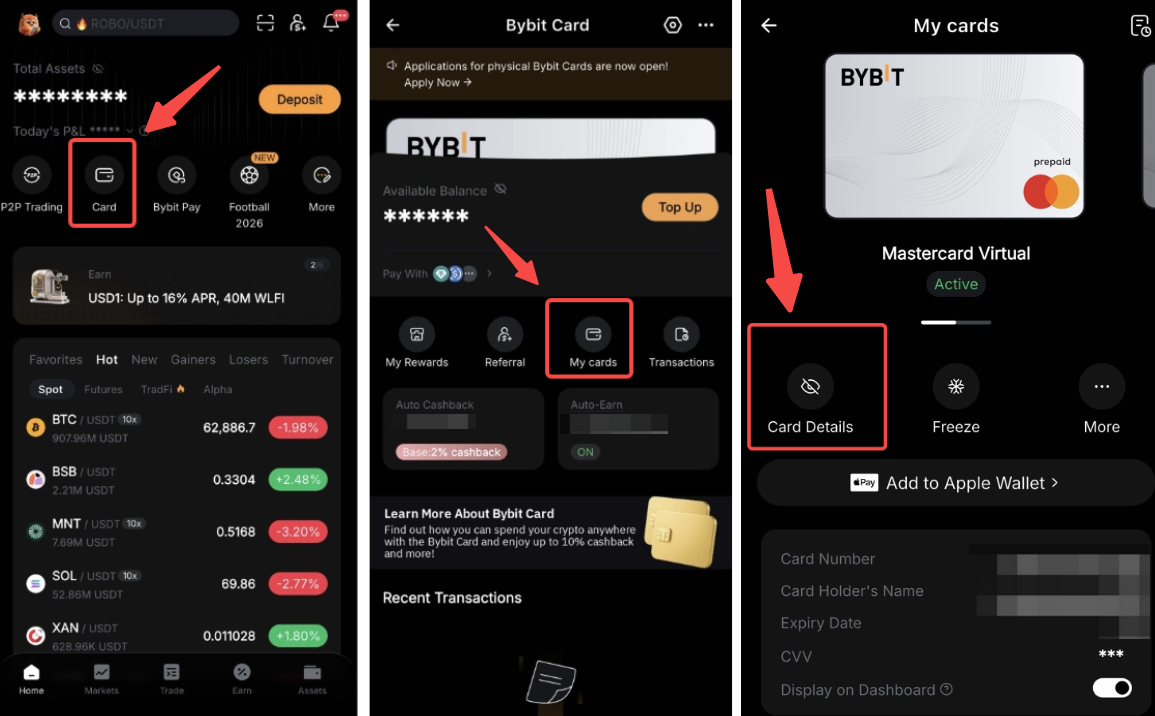
View Your Card Details
To view your Bybit Card details, you may go to My Cards and click on Card details. If you have more than one Bybit Card, simply slide your screen to the left to view the second card's details.