Bybit's quick trading features allow you to place and adjust orders directly on the trading chart, helping you execute your trading strategies more efficiently in volatile markets. This article covers the following quick trading features:
Quick Open
Available for both Spot and Futures trading, Quick Open allows you to open trades or positions by setting the order details (such as quantity and direction) directly from the chart's trade bar.
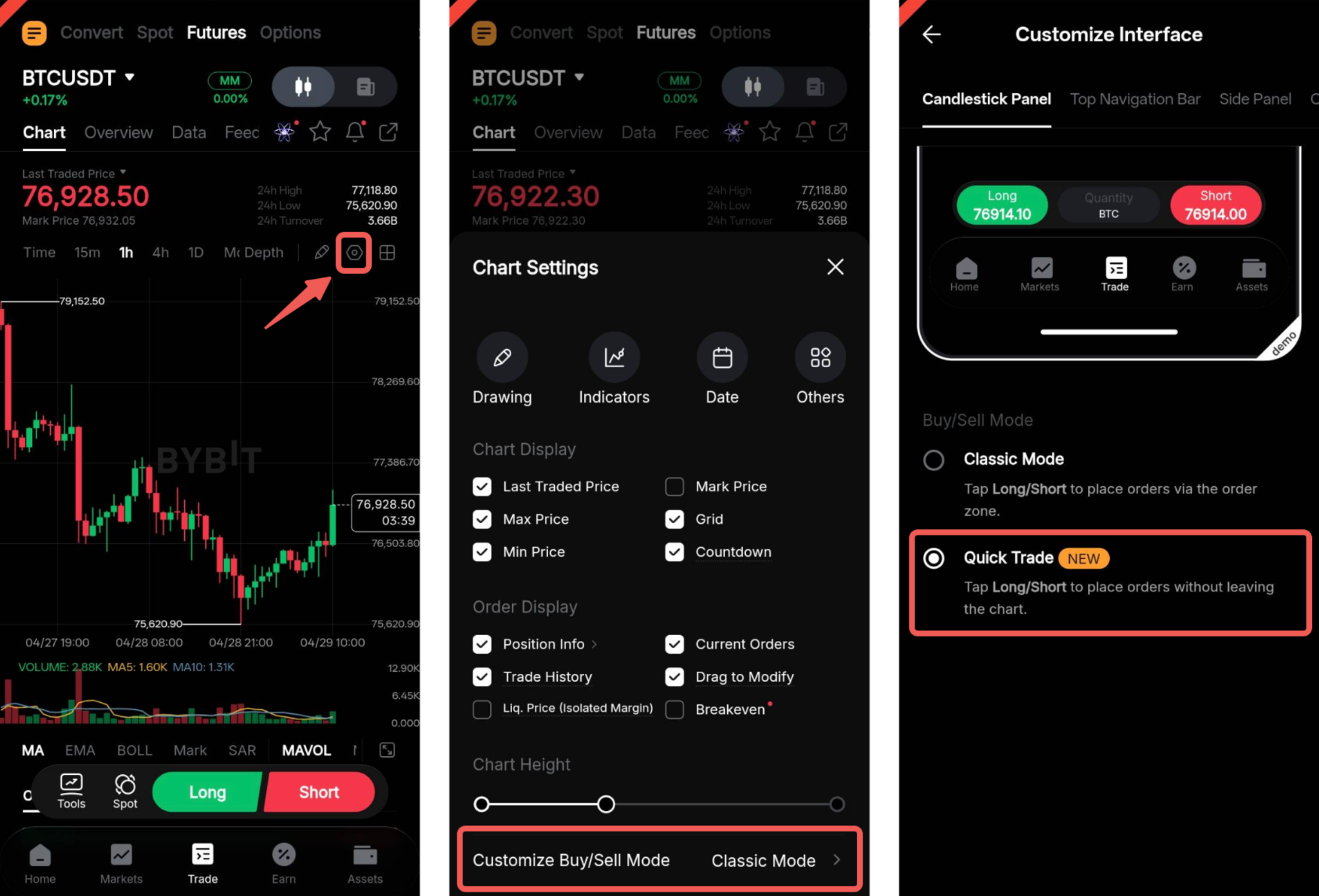
To get started, you must first enable Quick Trade from the chart screen. Open Chart Settings by tapping the Settings icon, then tap Customize Buy/Sell Mode and select Quick Trade.
Market Order
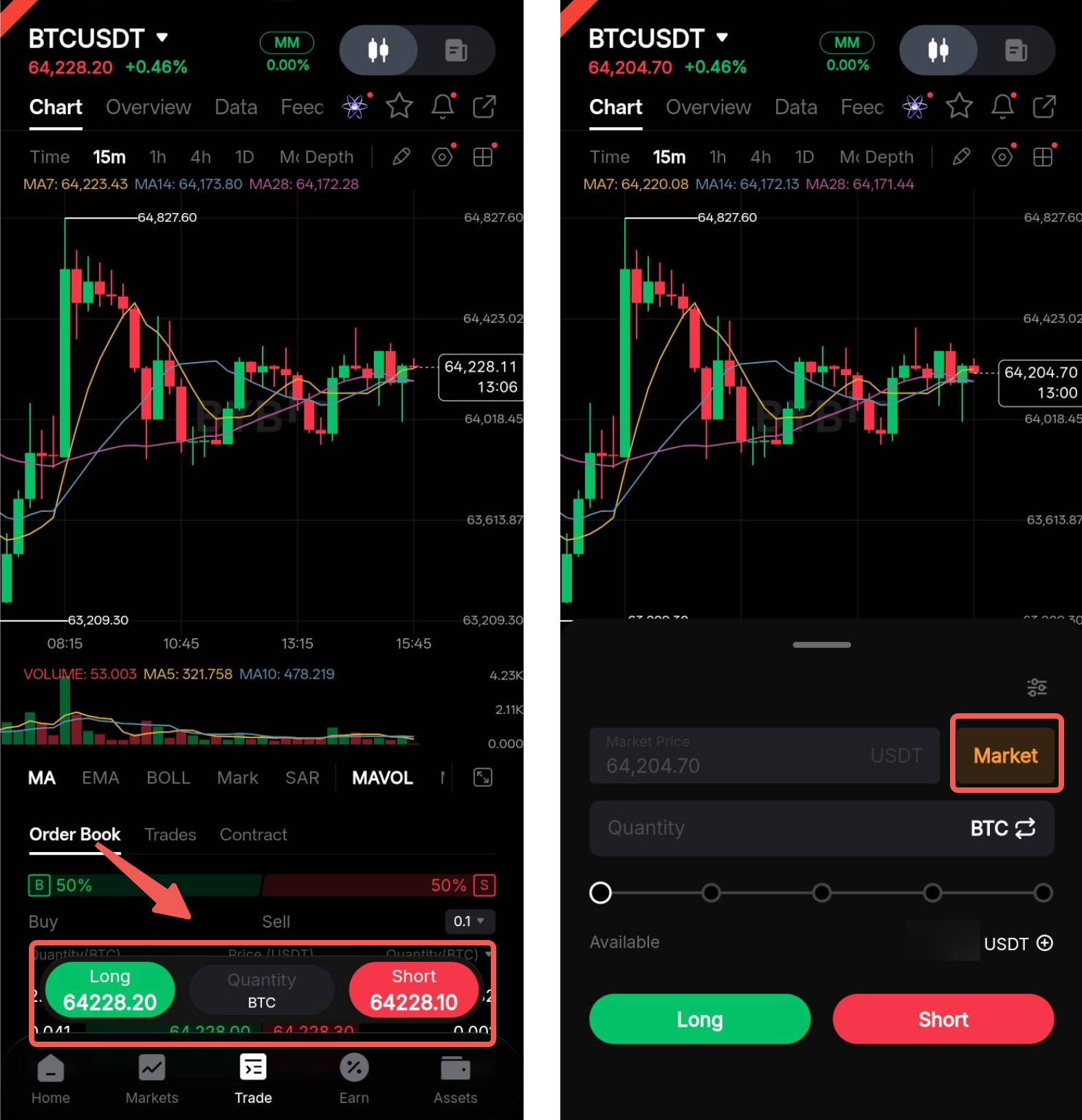
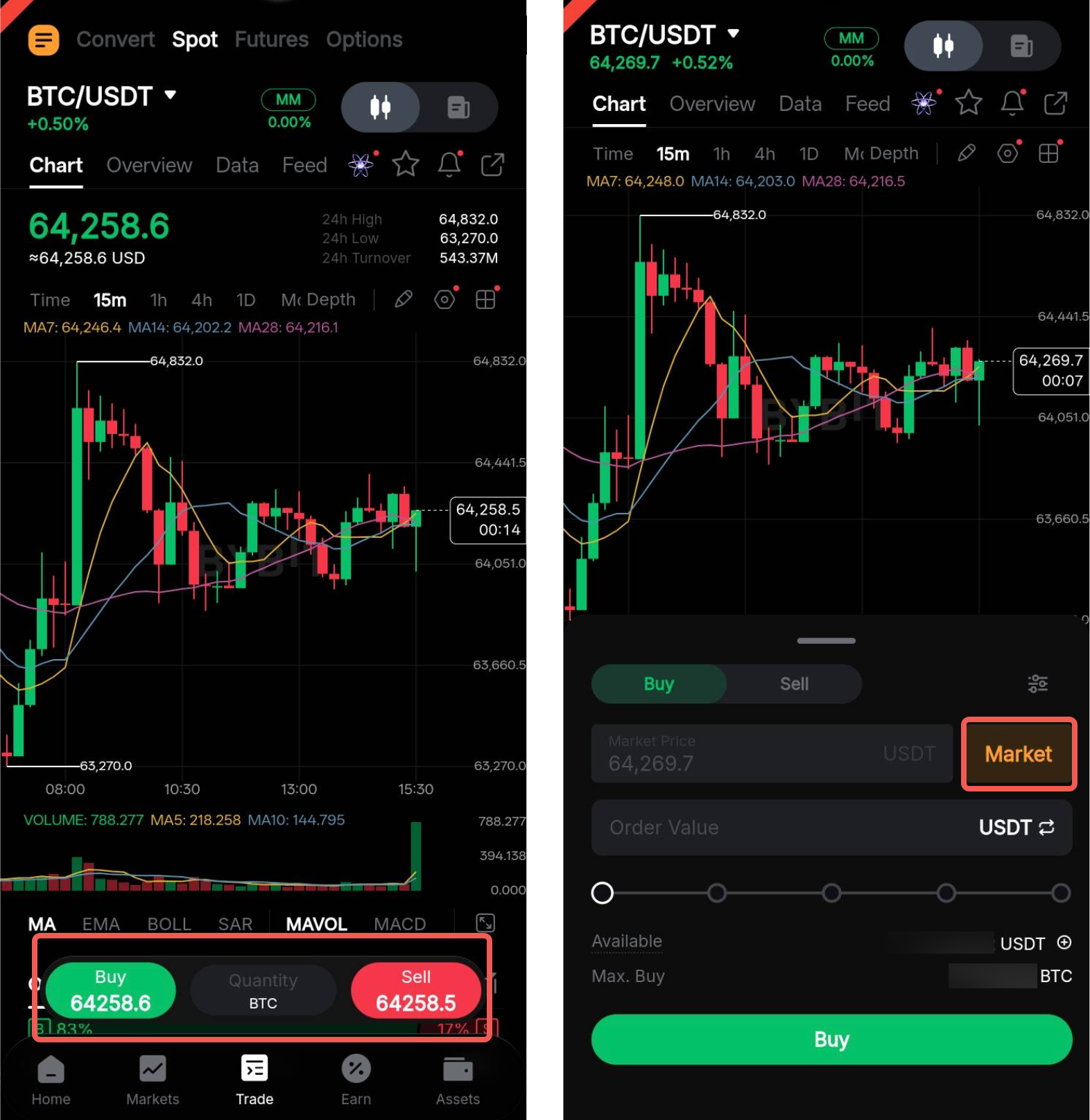
To place a market order, enter your desired order quantity in the trade bar below the chart. By default, the trade bar is set to Market Order.
Once you've entered the order quantity, tap Buy/Long or Sell/Short.
Note:
— A market order is executed at the best available price in the order book. However, the actual execution price may differ slightly from the price displayed in the quick entry area.
Limit Order
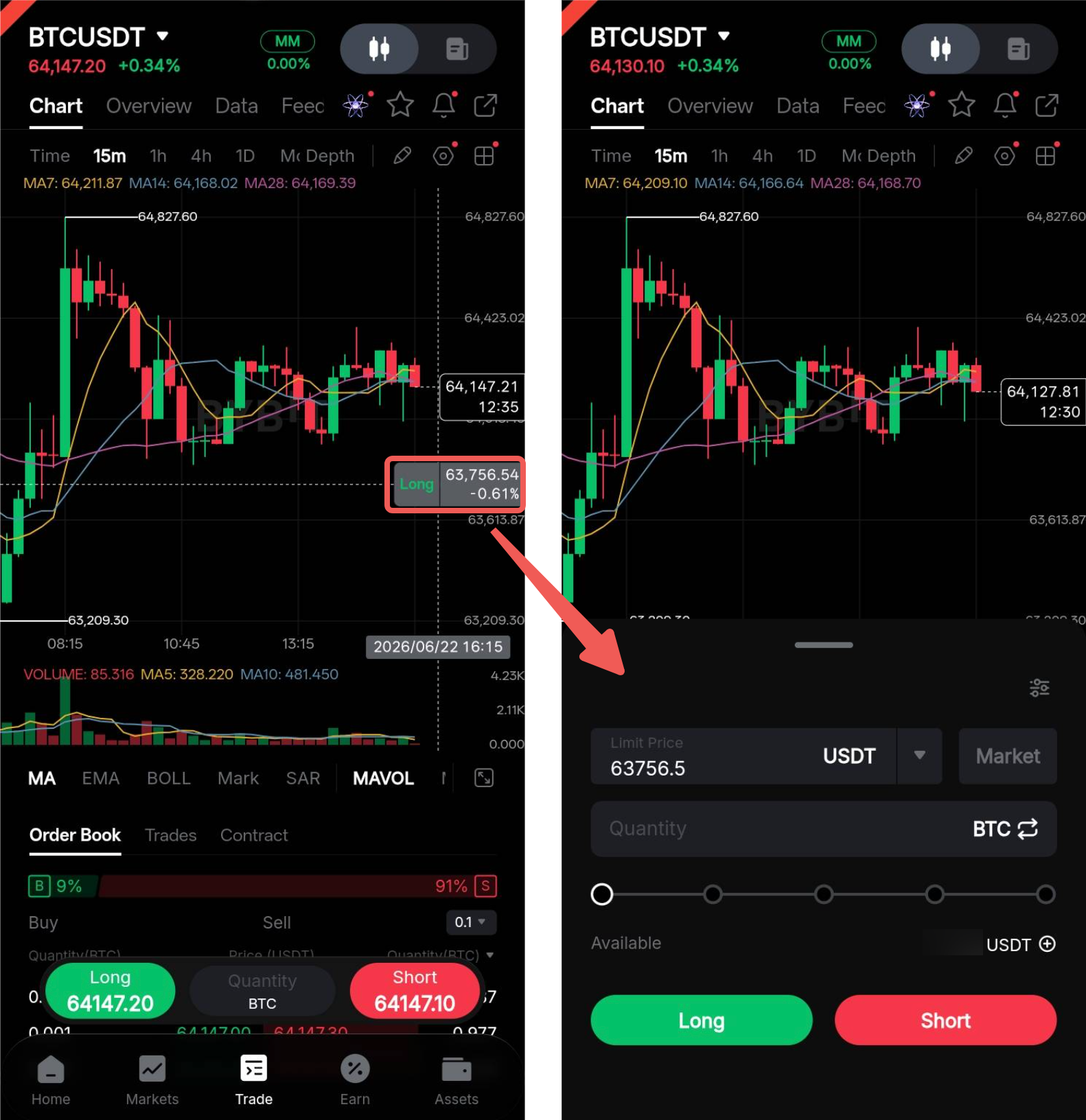
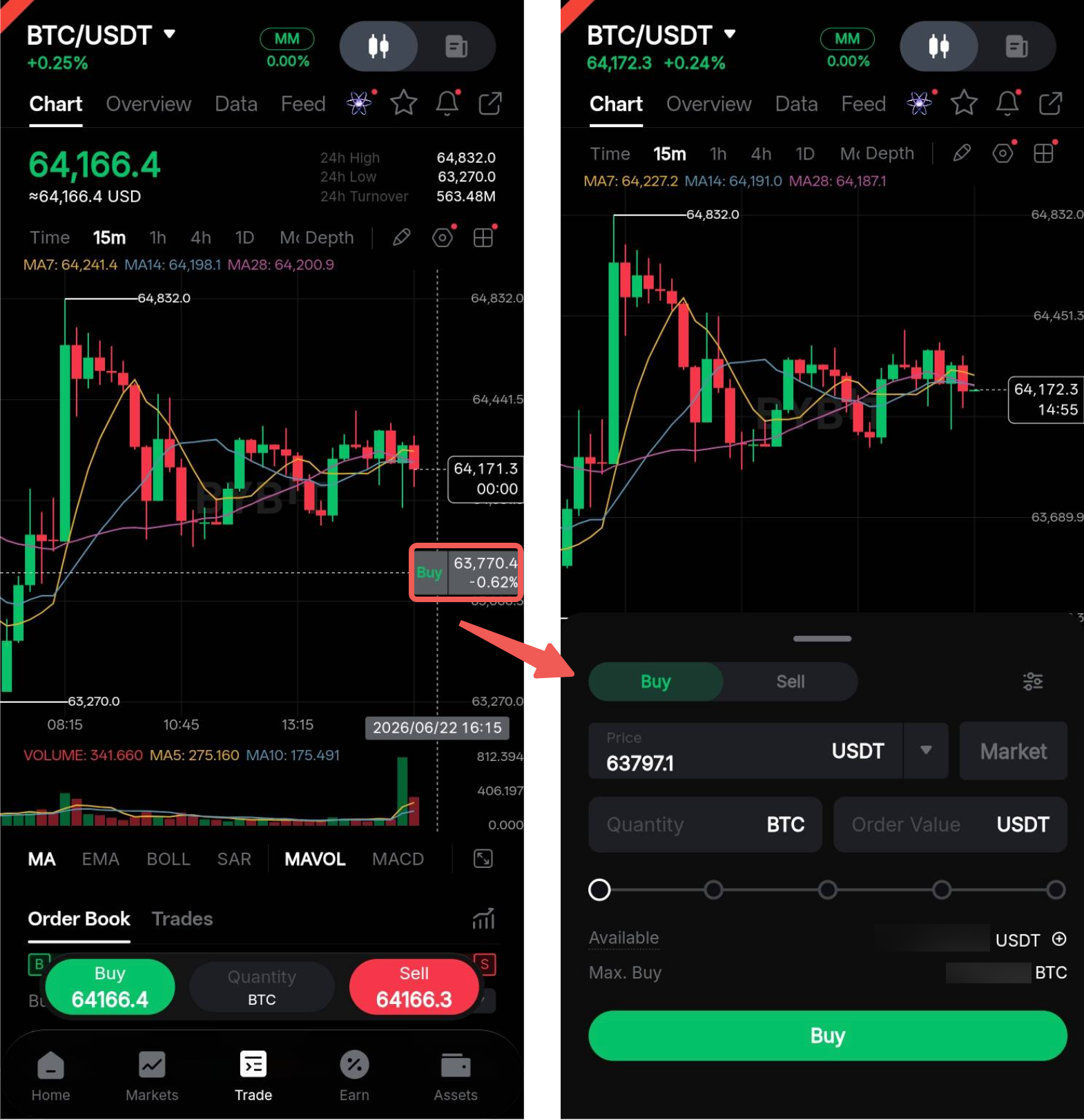
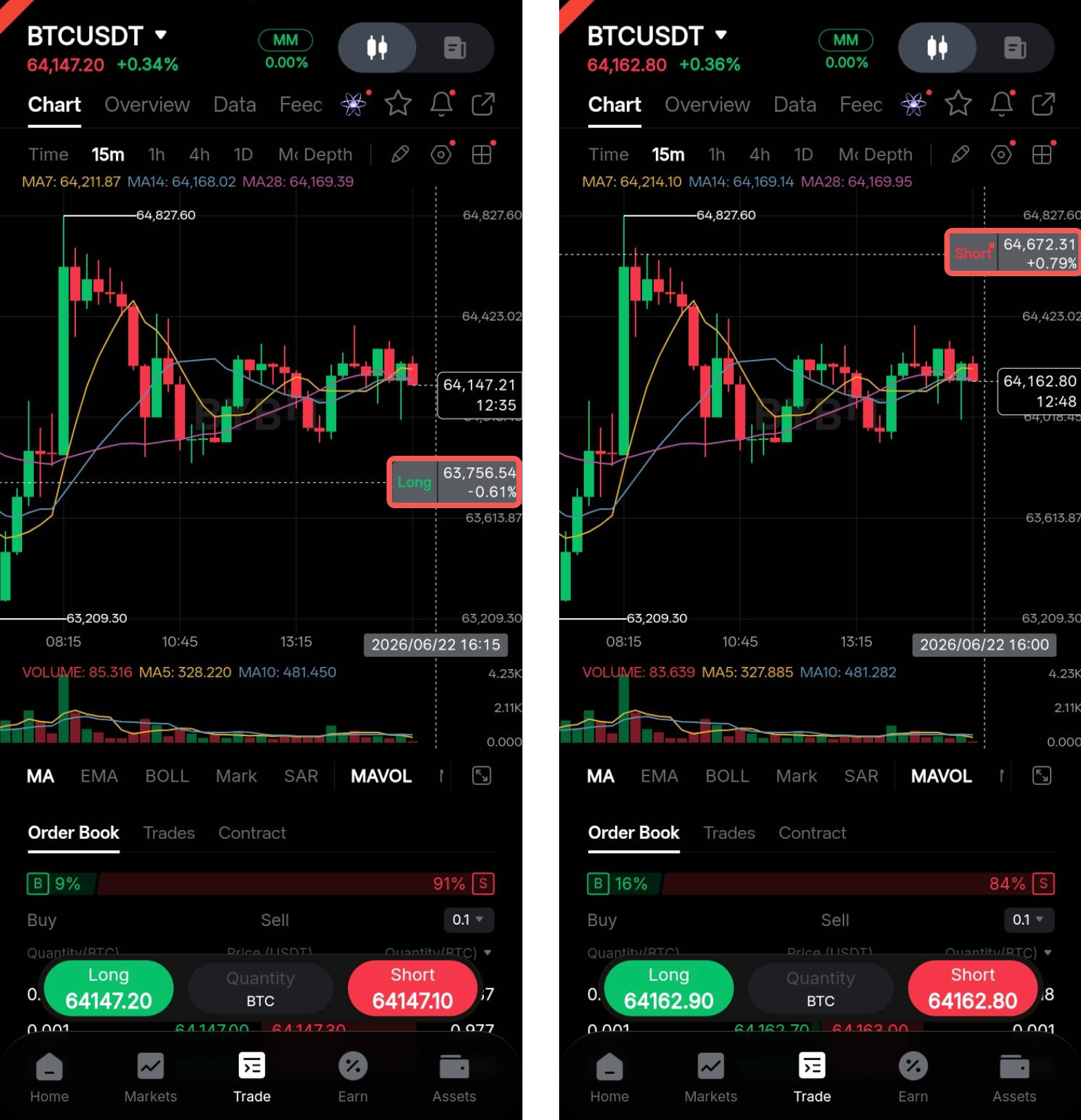
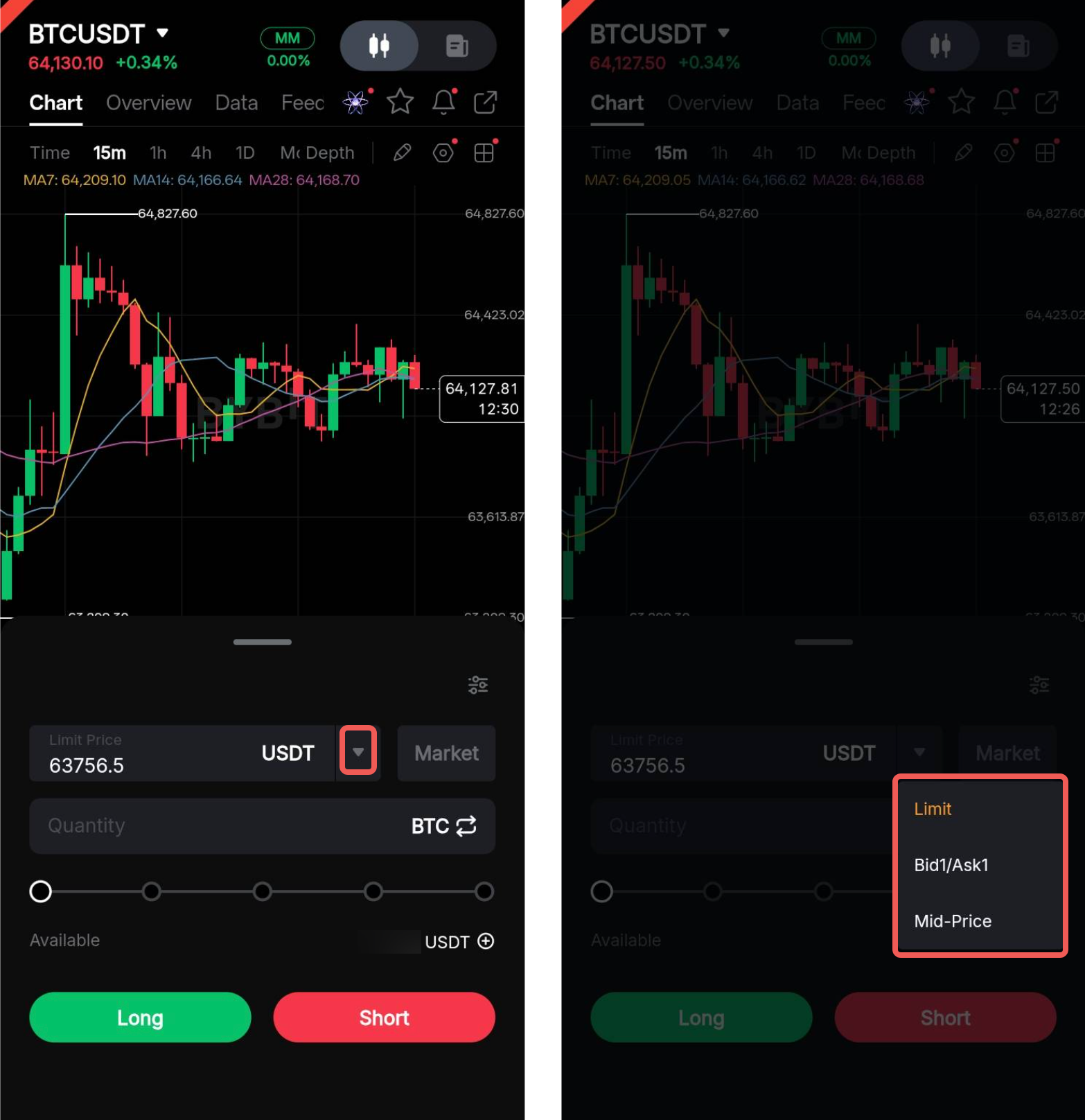
The limit order quick trading feature is available from the price scale of the trading chart. To place a limit order, tap and drag to your desired price, then tap either Buy/Long or Sell/Short, depending on whether the selected price is above or below the last traded price.
The trade bar appears below the chart, where you can enter the order quantity, review the order details, and tap Buy/Long or Sell/Short to place the order.
Notes:
— When the selected price is above the last traded price, you can place a Sell/Short limit order. Conversely, when the selected price is below the last traded price, you can place a Buy/Long limit order.
— You can modify the limit price in the input field before placing the order. You can also select Bid1/Ask1 or Mid-Price from the drop-down menu to preset the price.
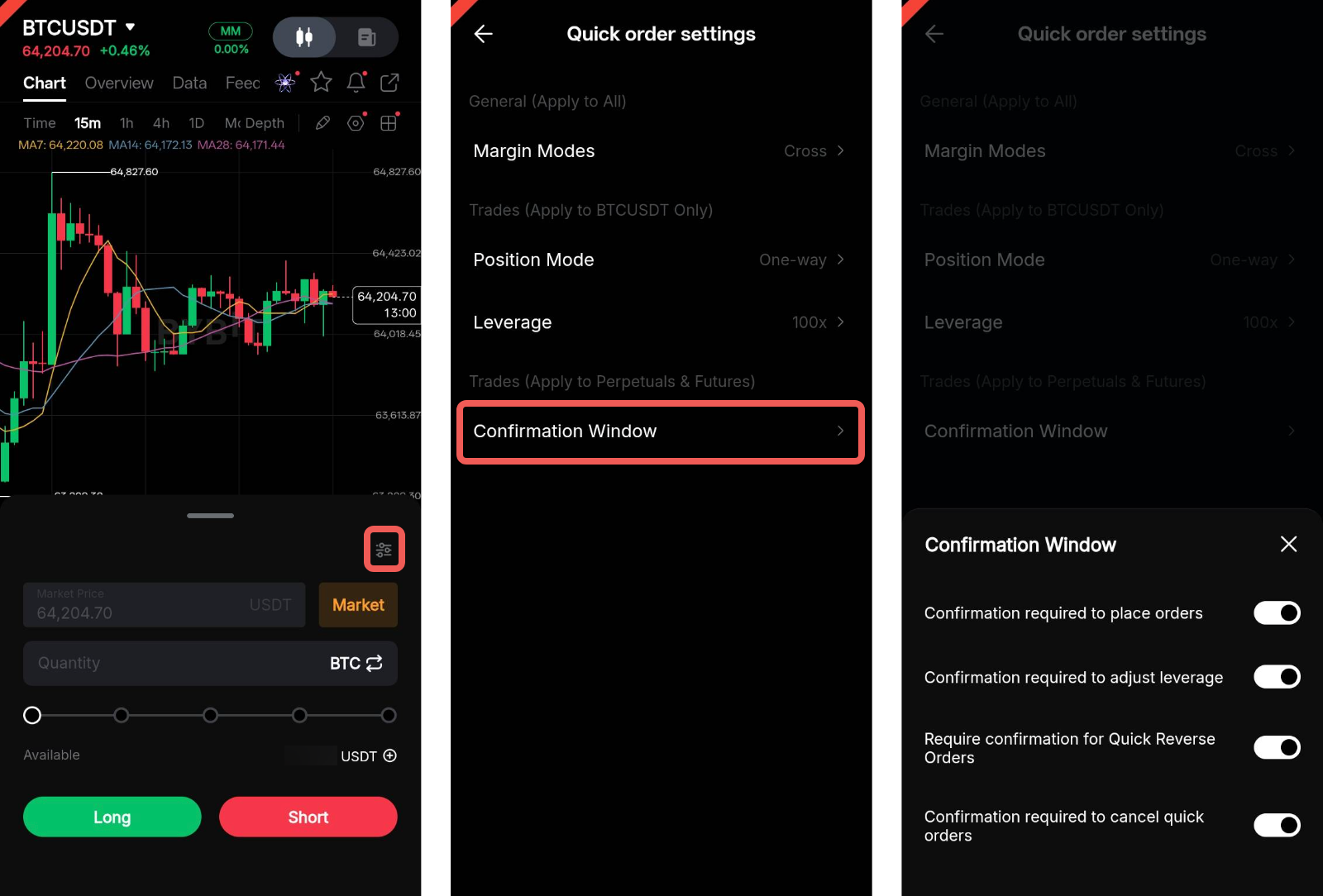
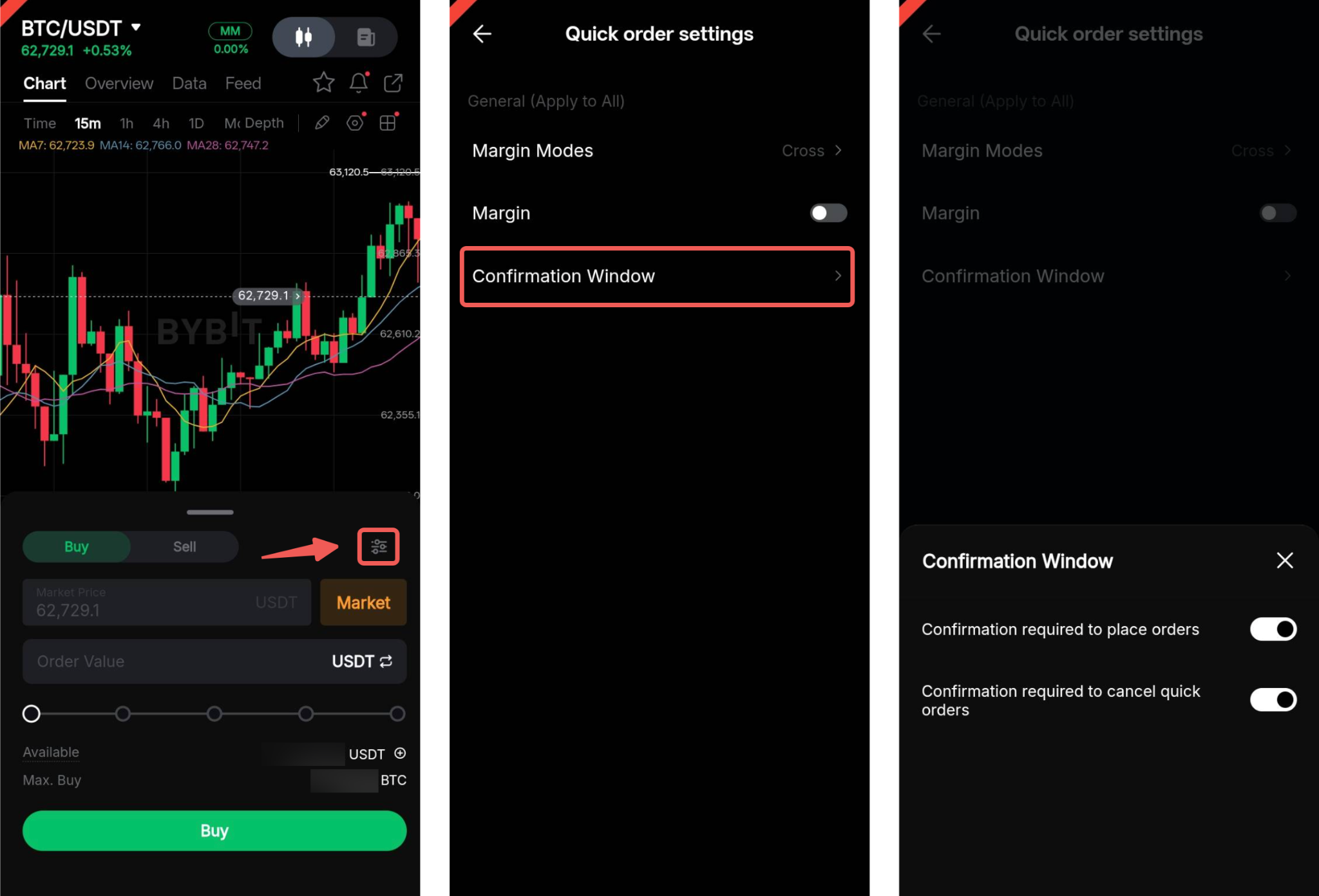
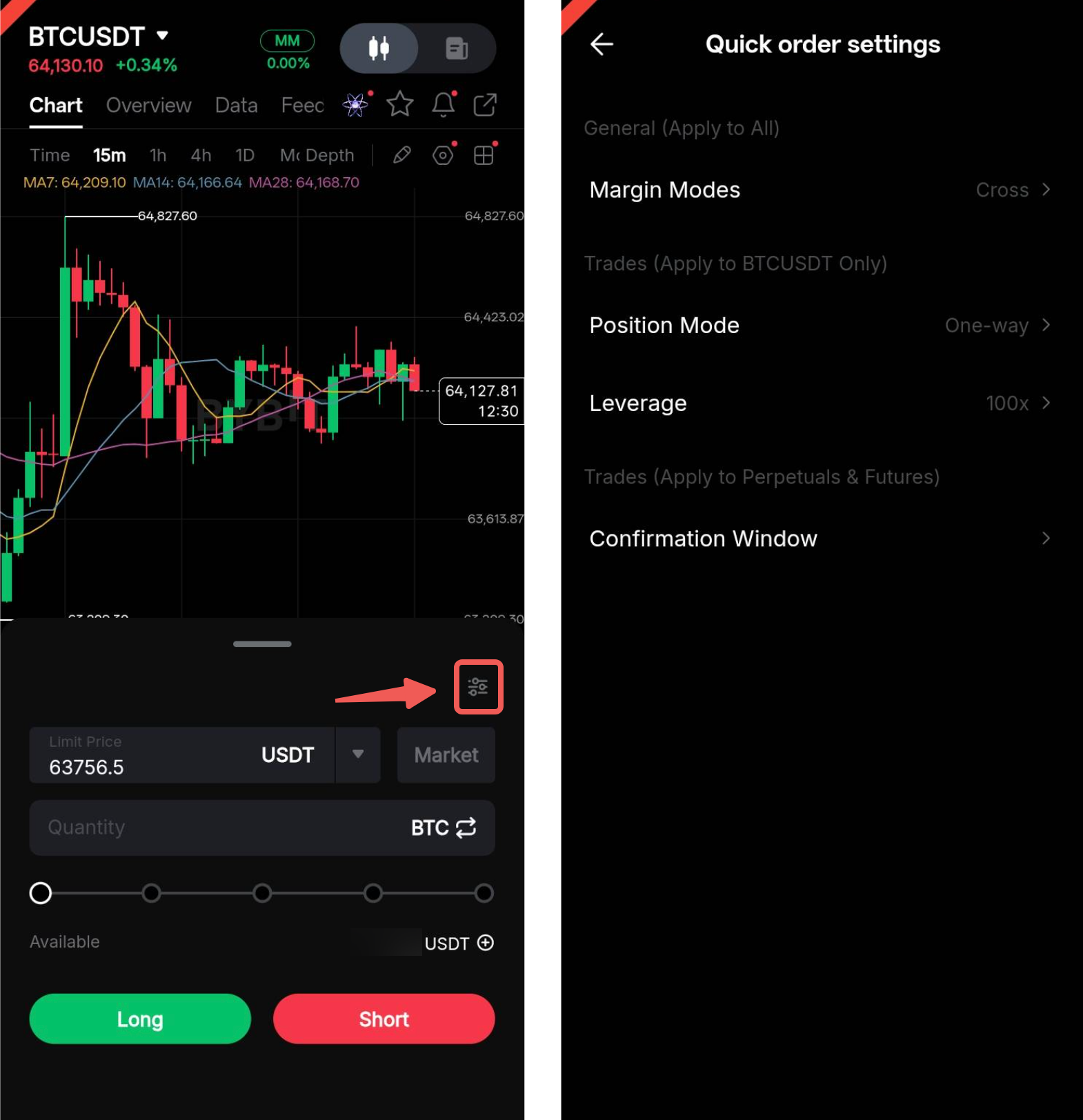
— To update your order settings, such as the margin mode, position mode, leverage, and order confirmation window, tap the Settings icon in the top-right corner of the trade bar, then adjust the settings as needed.
Order execution in Futures trading:
The Quick Entry feature operates differently depending on the selected Position mode:
- In One-Way mode, tapping Long or Short using the quick entry feature opens a new position or increases the size of an existing position in the same direction. Tapping the opposite direction instead reduces or closes your existing position.
- In Hedge mode, tapping the opposite direction using the quick entry feature opens a separate position instead of reducing or closing your existing one. To close a position, use the Positions tab, the Order Zone, or the Quick Close feature.
Quick Modify & Cancel
Use this feature to quickly modify the price of your open limit and conditional orders or cancel them directly from the trading chart.
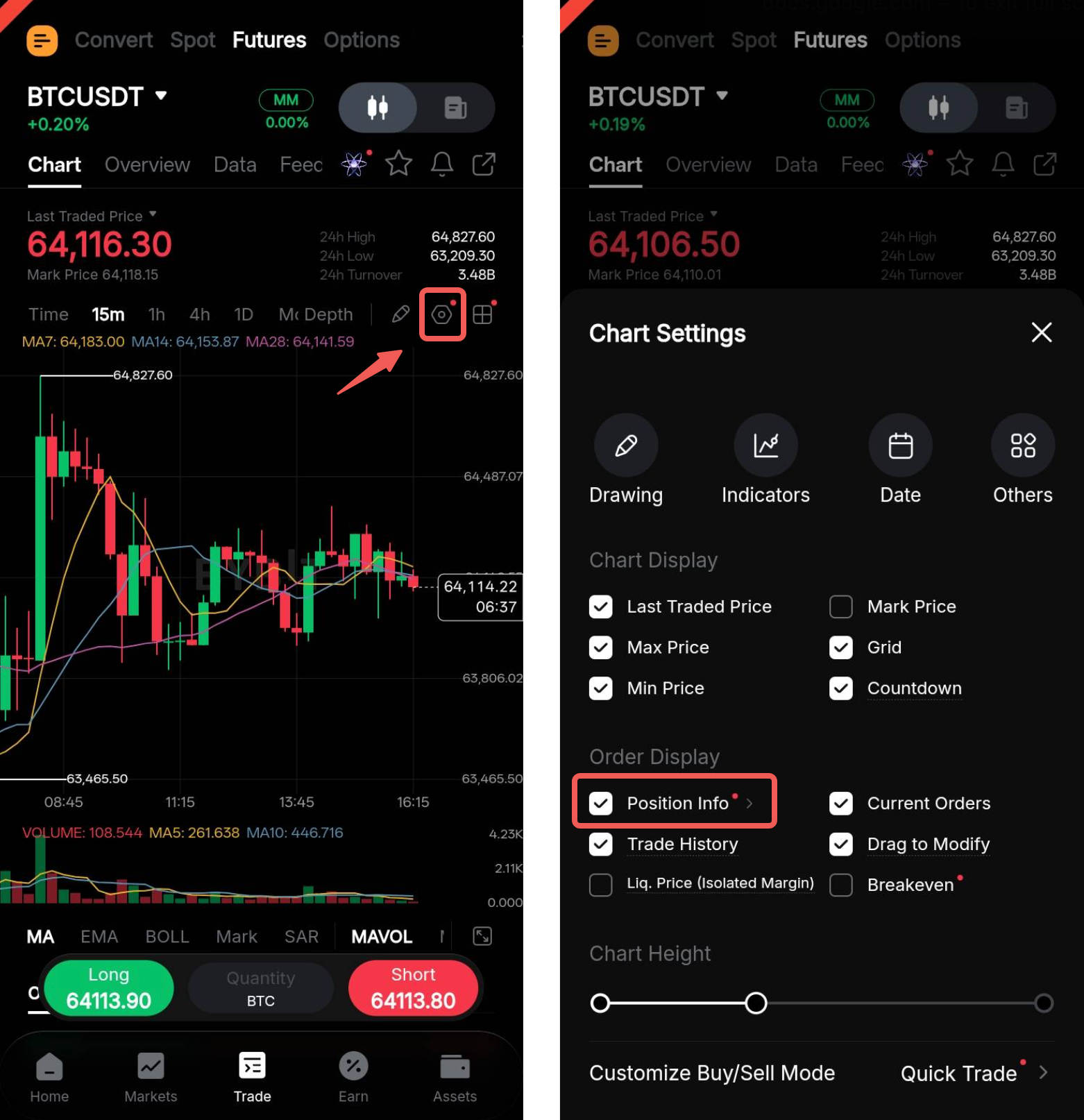
To enable this feature, tap the Settings icon in the top-right corner of the trading chart and select the Current Orders checkbox.
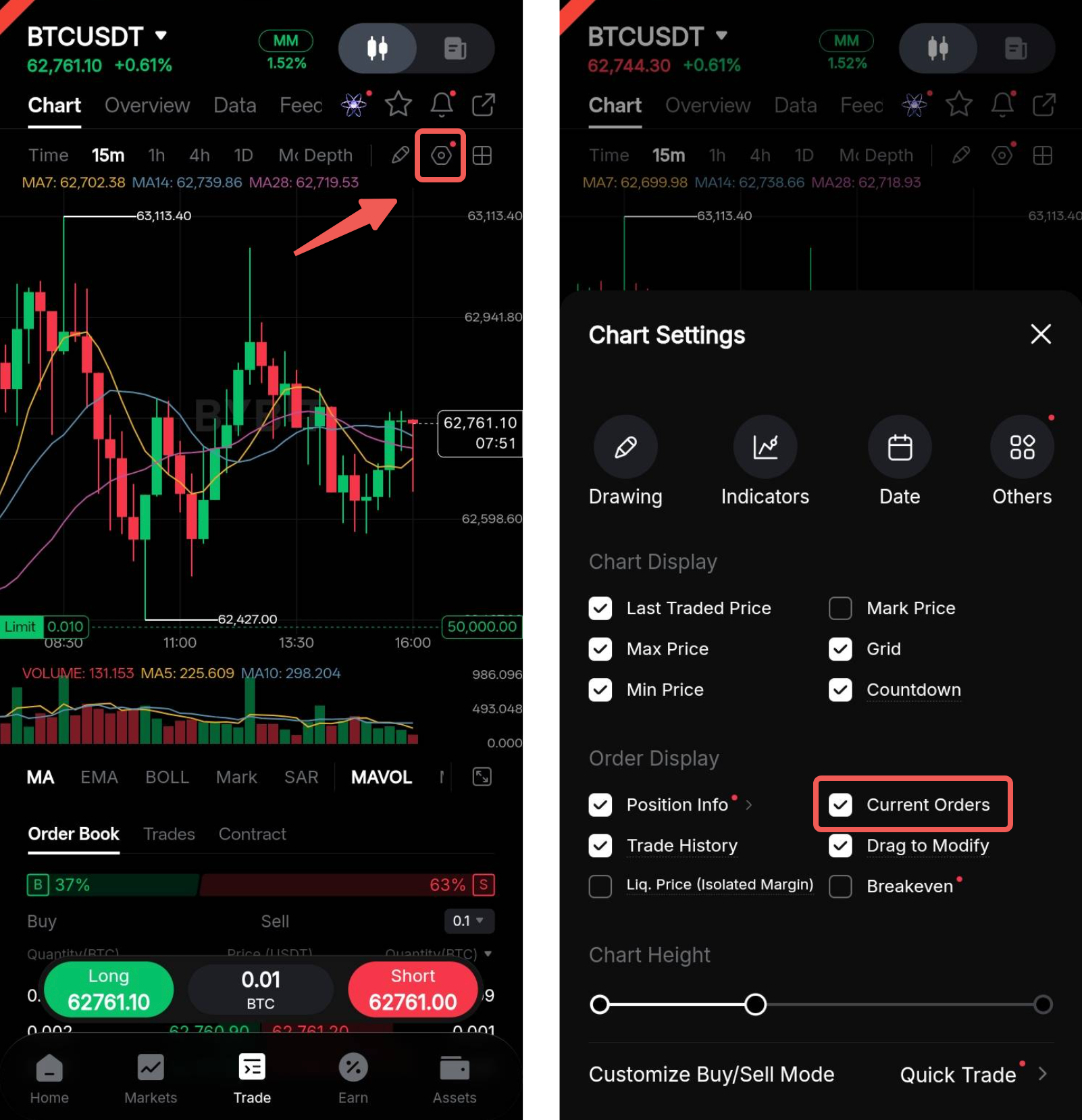
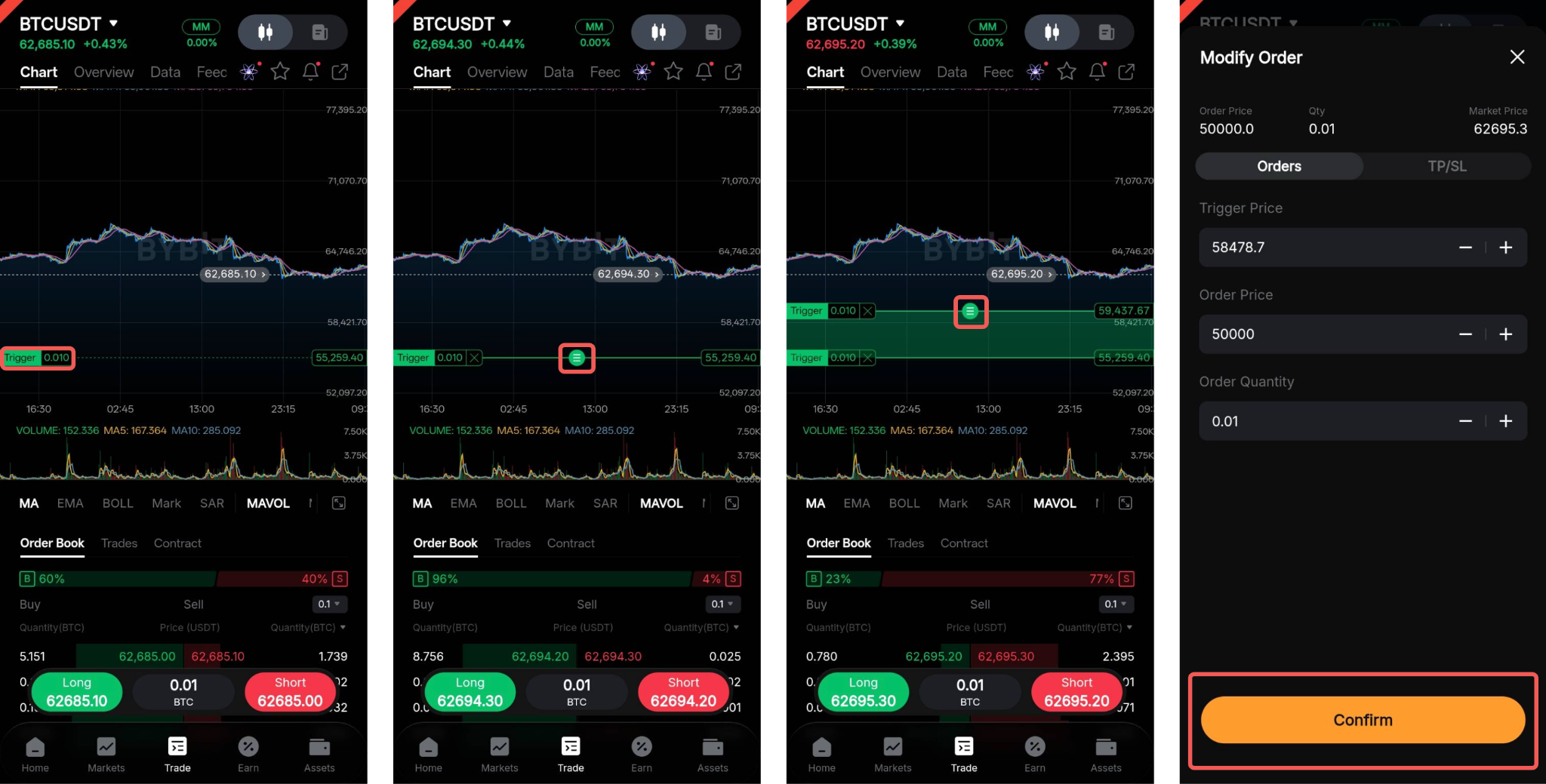
Once the order information display is enabled, locate the corresponding order price or trigger price (for conditional orders) on the price scale.
To modify an order, tap the order information display and drag it to your desired price. In the Modify Order window, adjust the order parameters as needed, then tap Confirm.
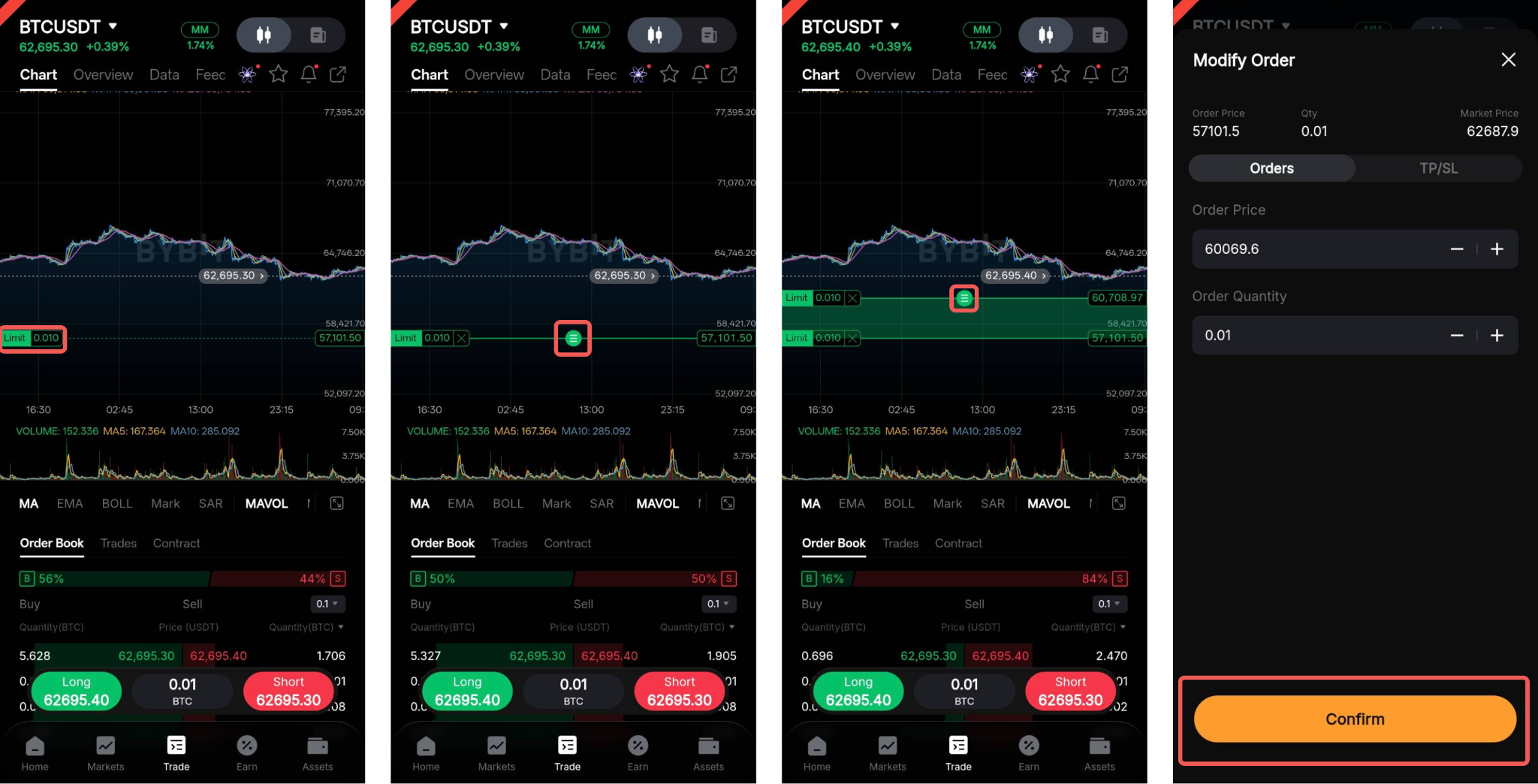
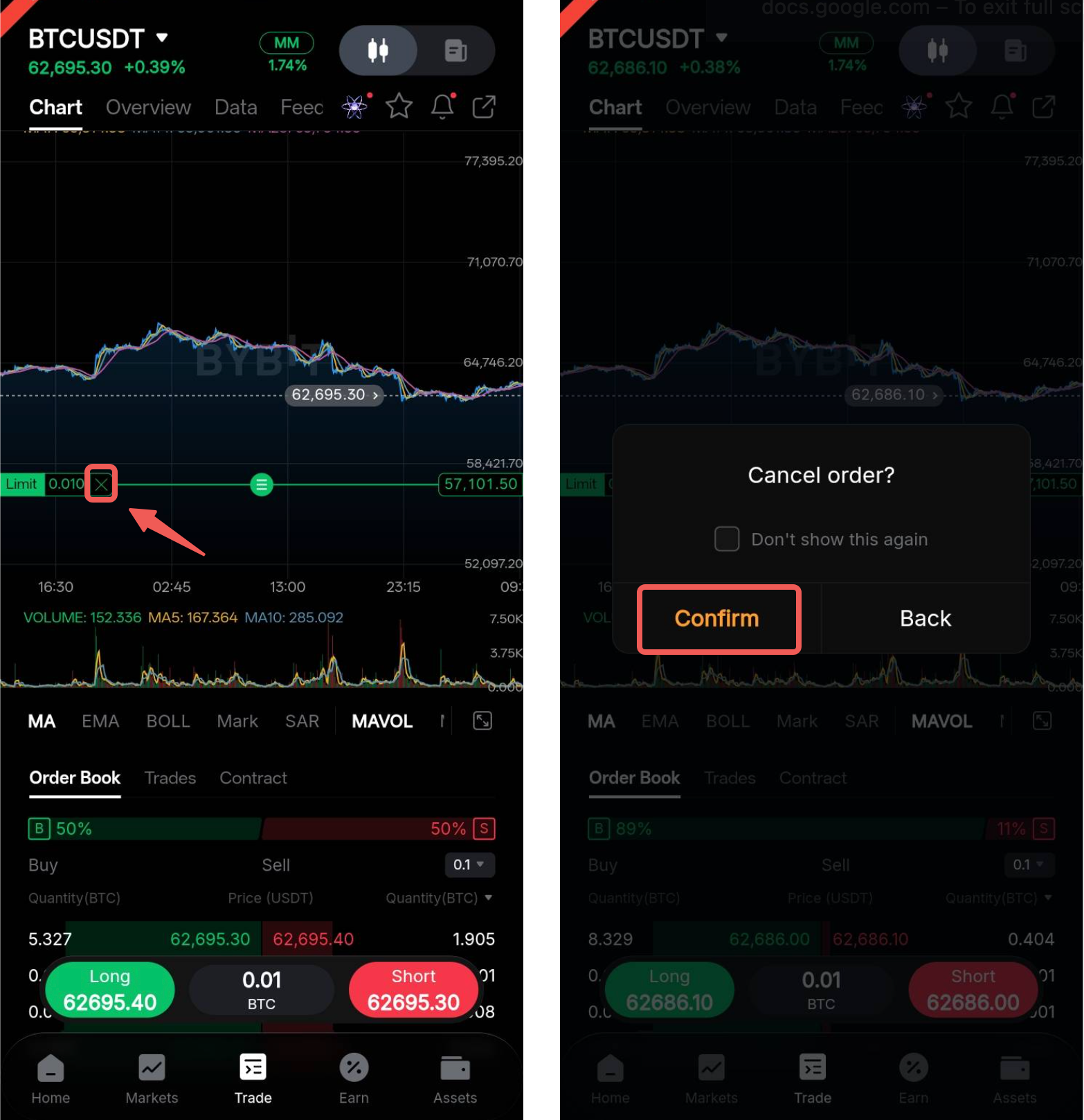
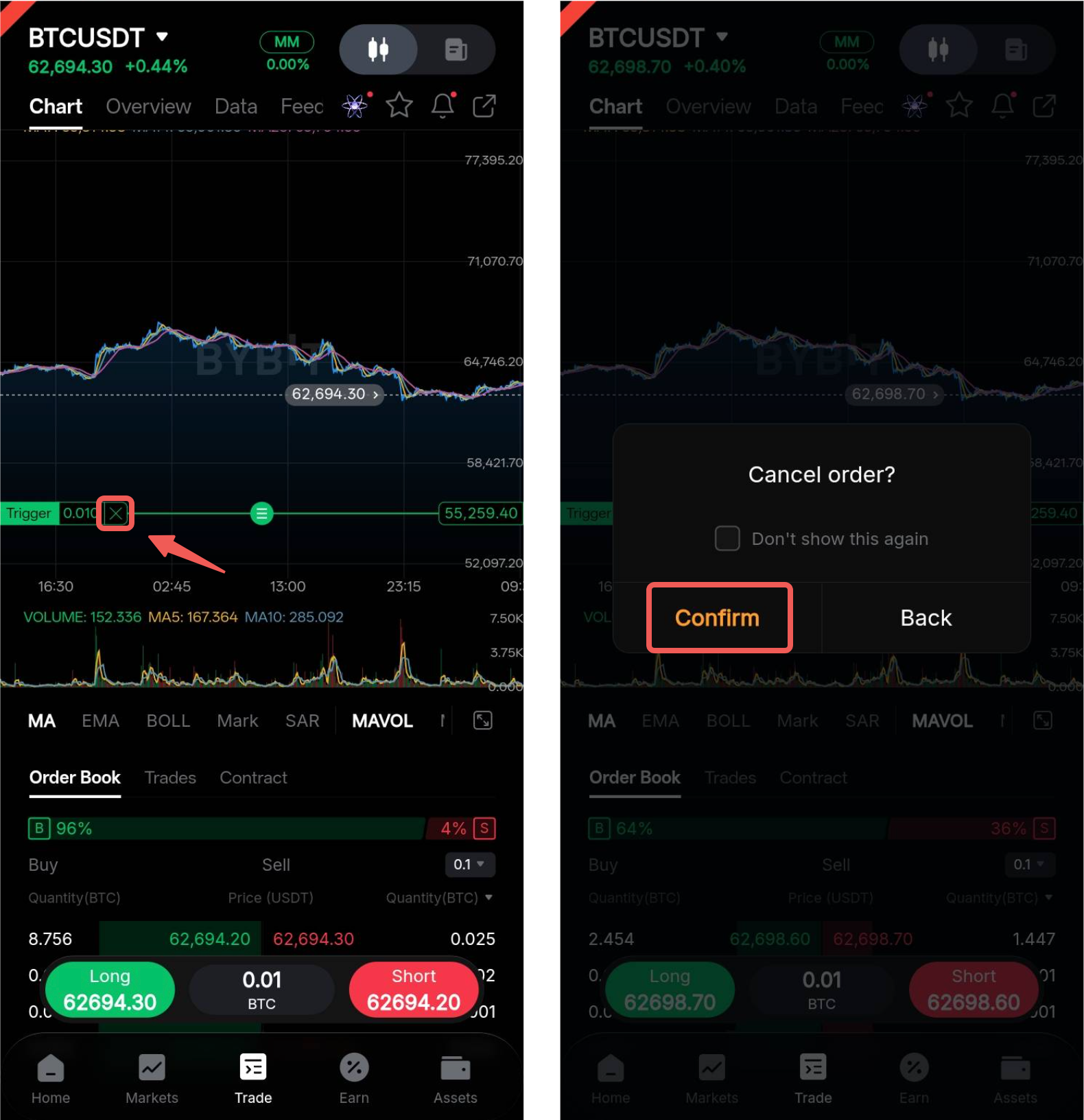
To cancel an order, tap the order information display, then tap the × button. Tap Confirm to complete the cancellation.
The following features are available only for Futures trading. To enable them, open Chart Settings and ensure that Position Info is enabled.
Quick Close
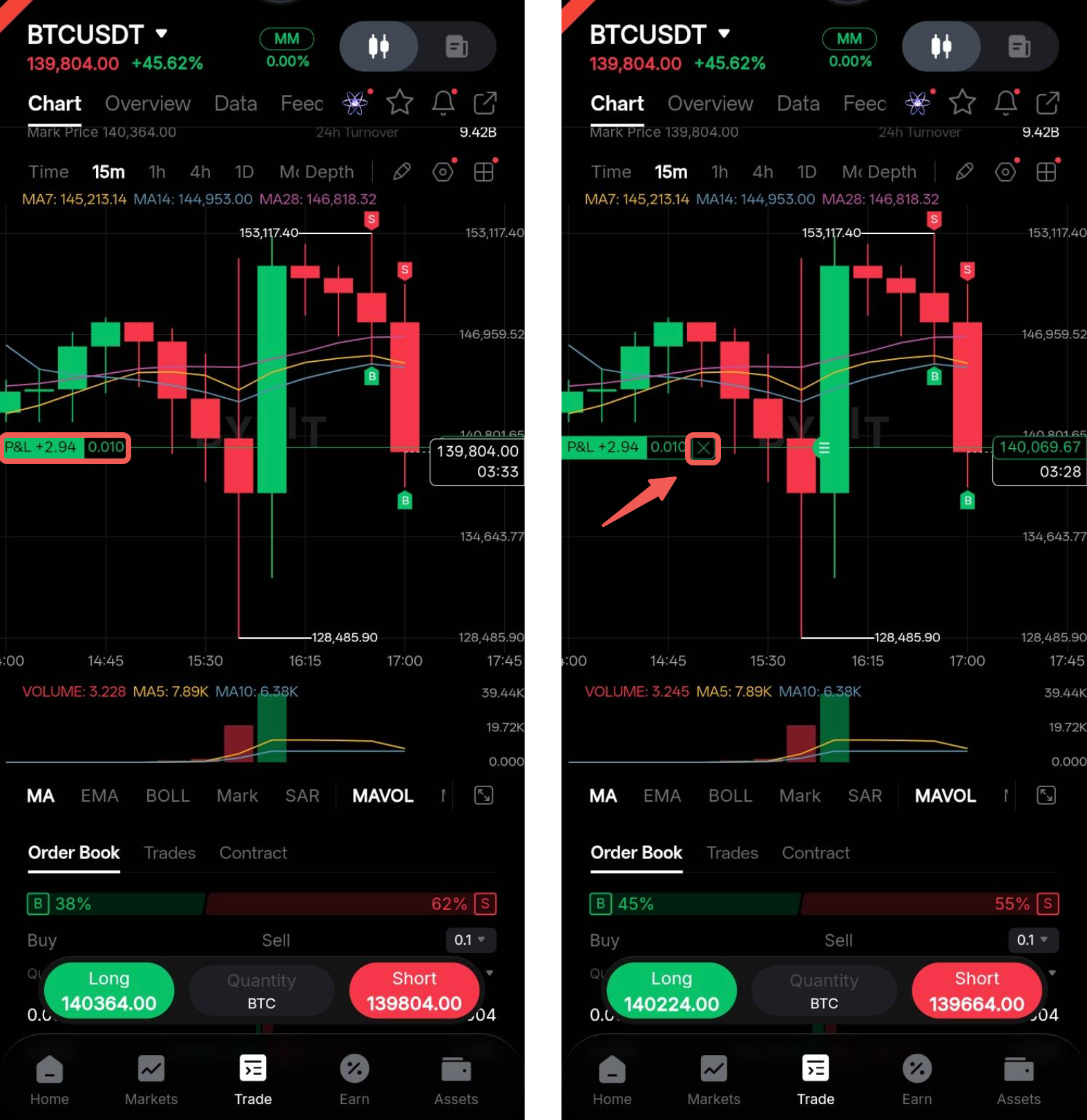
The Quick Close feature allows you to close an open position instantly using a market order. To do so, tap your open position on the trading chart, then tap the × button.
Quick Reverse
The Quick Reverse feature reverses the direction of your position while maintaining the same position size. It automatically closes your existing position and opens a new position in the opposite direction at the market price.
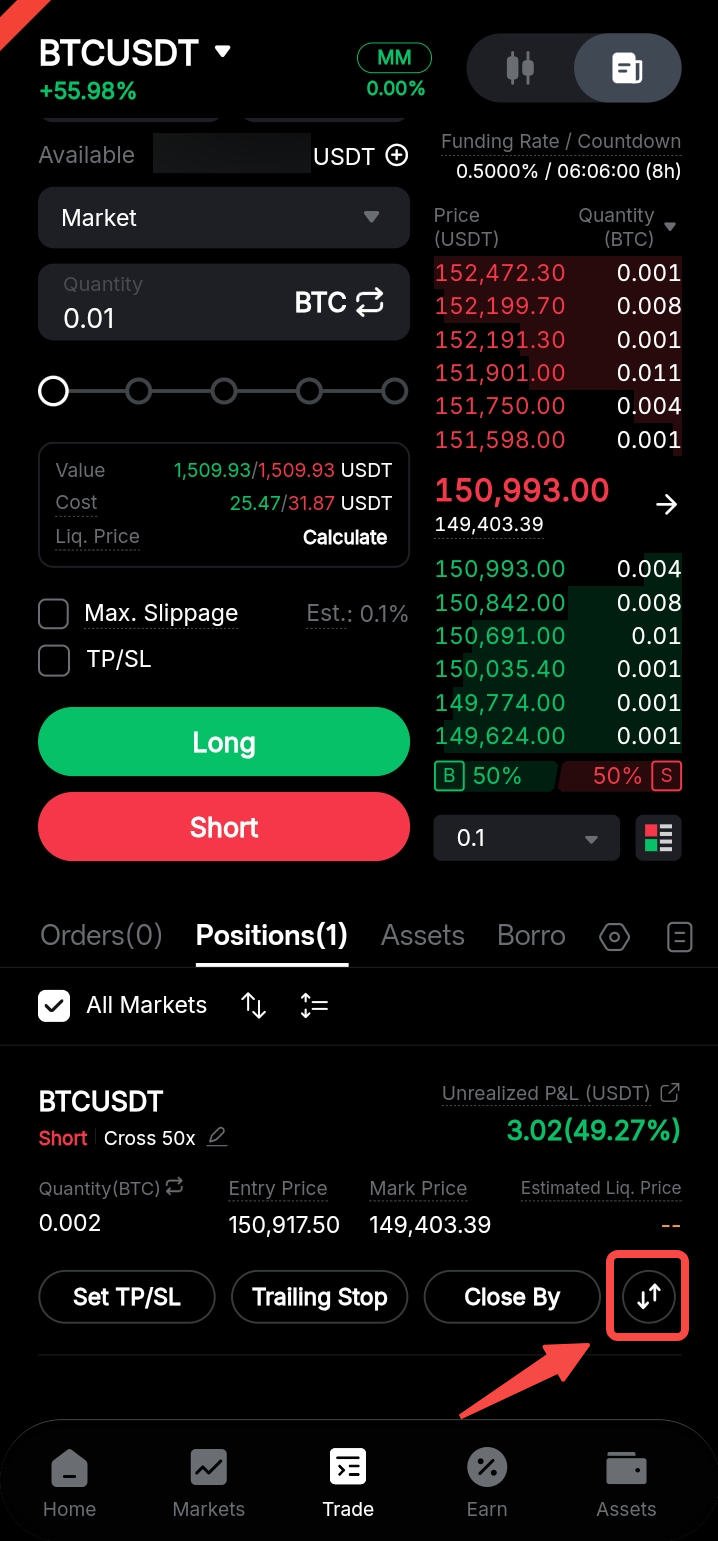
To reverse your position, go to the Positions tab and tap the ⇅ icon for the open position.
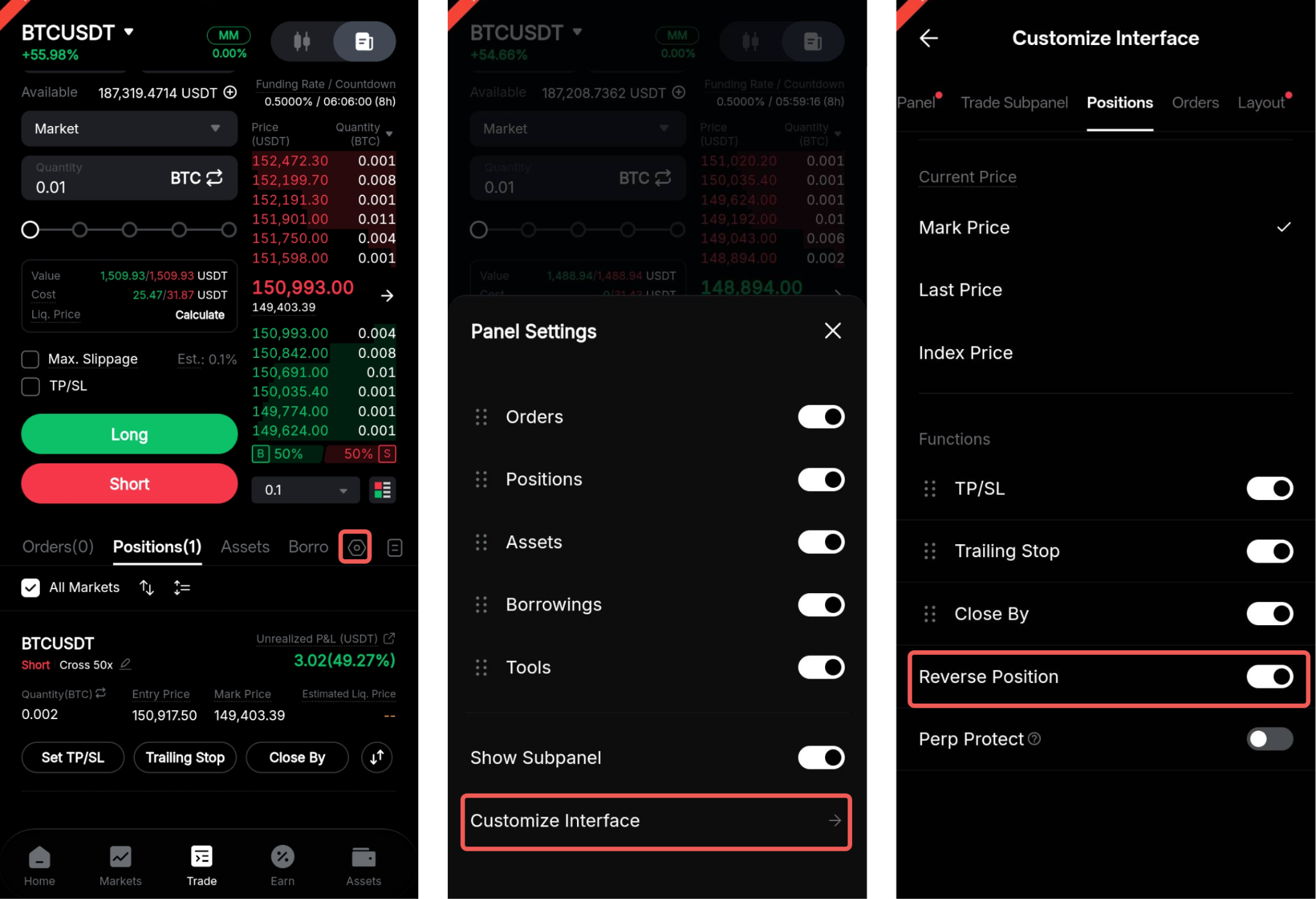
If you can't find the Reverse button in the Positions tab, you can enable it by going to Panel Settings → Customize Interface and enabling Reverse Position under Functions. Please note that you may need to deselect another function first, as you can only enable up to four functions at a time.
Notes:
— If your available balance is insufficient to open the new position, the reverse order may be canceled.
— If market liquidity is low, the reverse order may be only partially filled, and the executed order size may differ from the expected quantity.
Example 1:
If you currently hold a 0.1 BTC long position with no short position:
When you tap the Quick Reverse feature for the long position, the system first closes your existing 0.1 BTC long position and then opens a new 0.1 BTC short position using a market order. After the reversal, you will have a 0.1 BTC short position.
Example 2 (Hedge mode only):
If you currently hold a 0.2 BTC long position and a 0.1 BTC short position:
When you tap the Quick Reverse feature for the long position, the system first closes your existing 0.2 BTC long position and then opens a new 0.2 BTC short position. After the reversal, your total short position will increase to 0.3 BTC.
Quick TP/SL
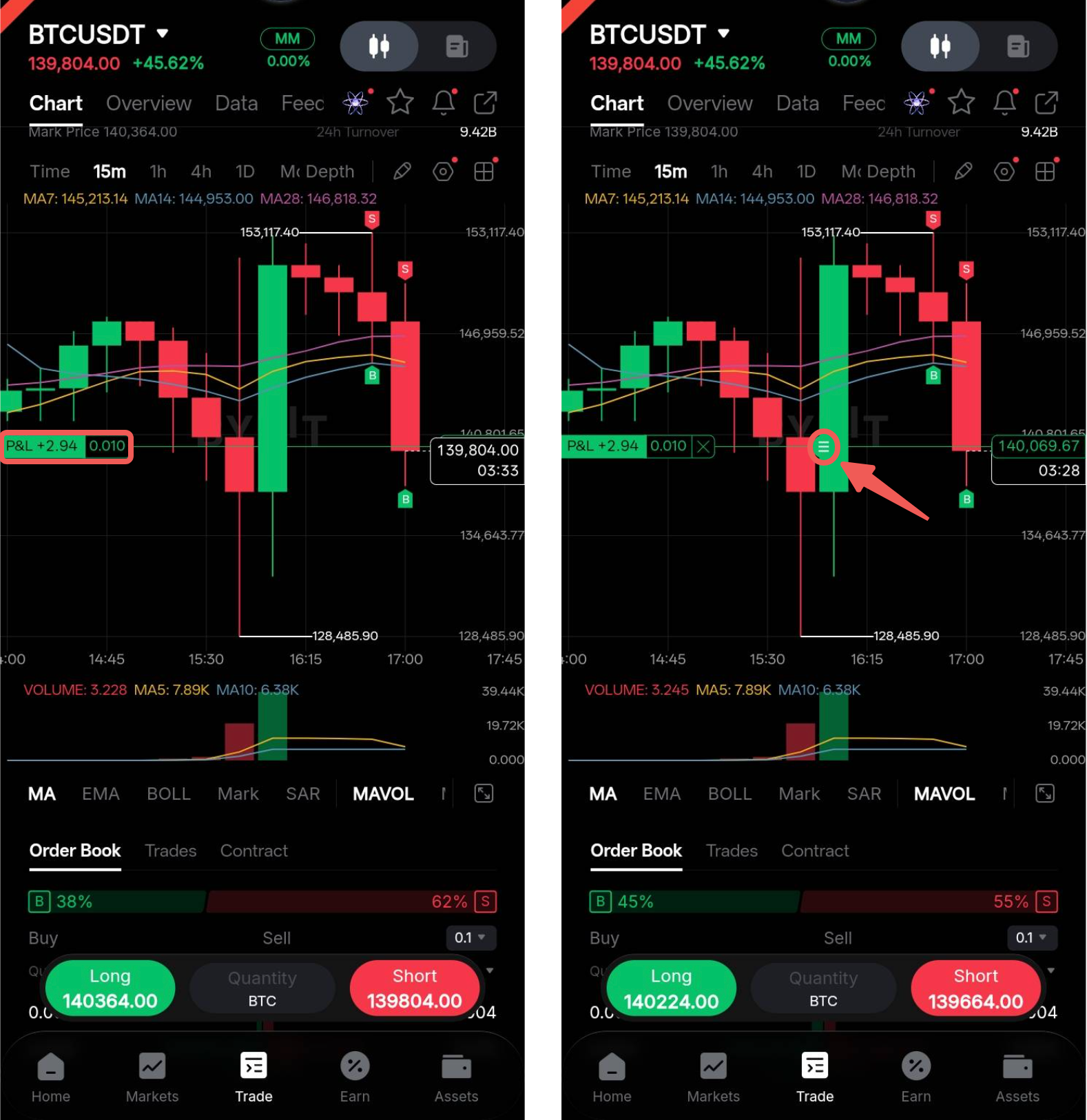
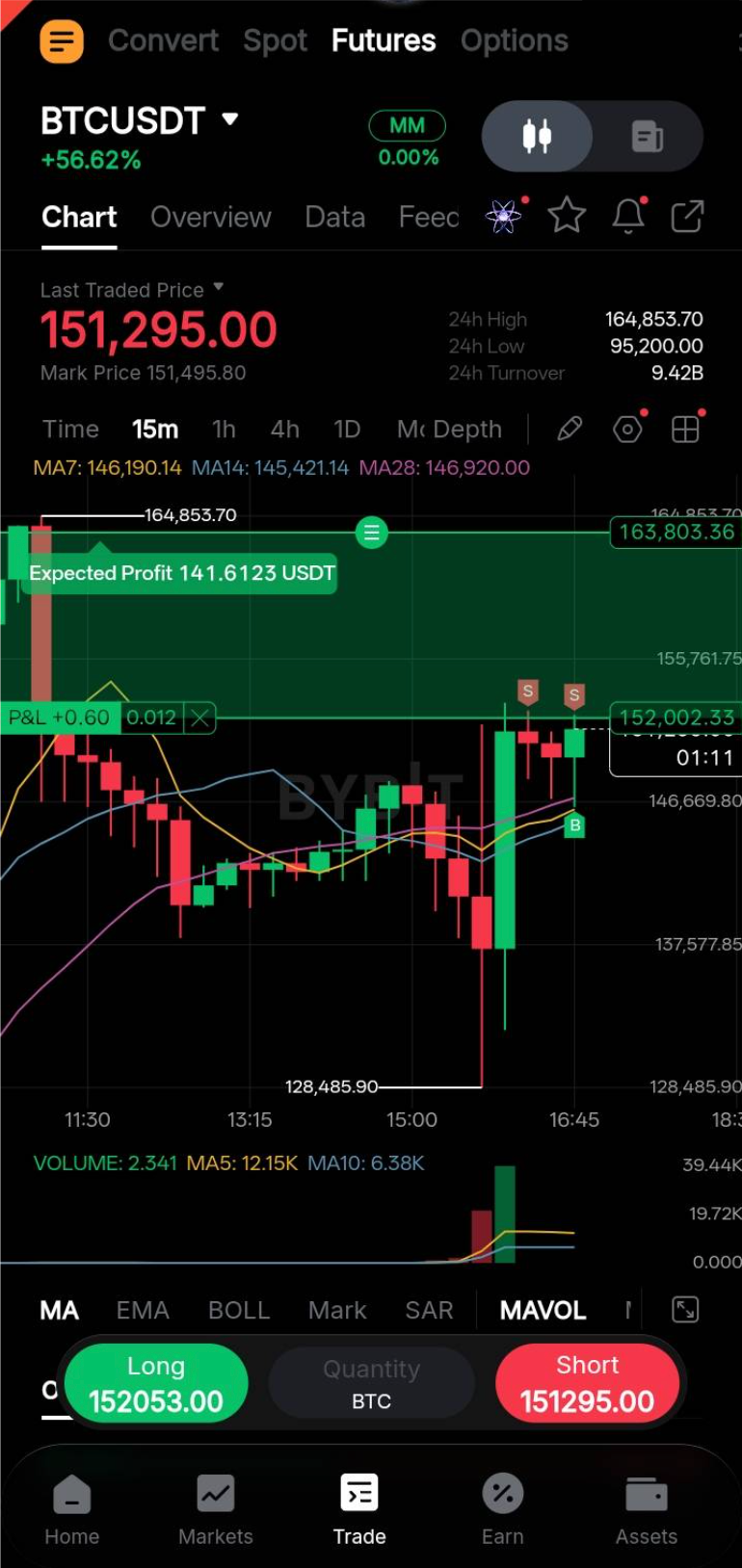
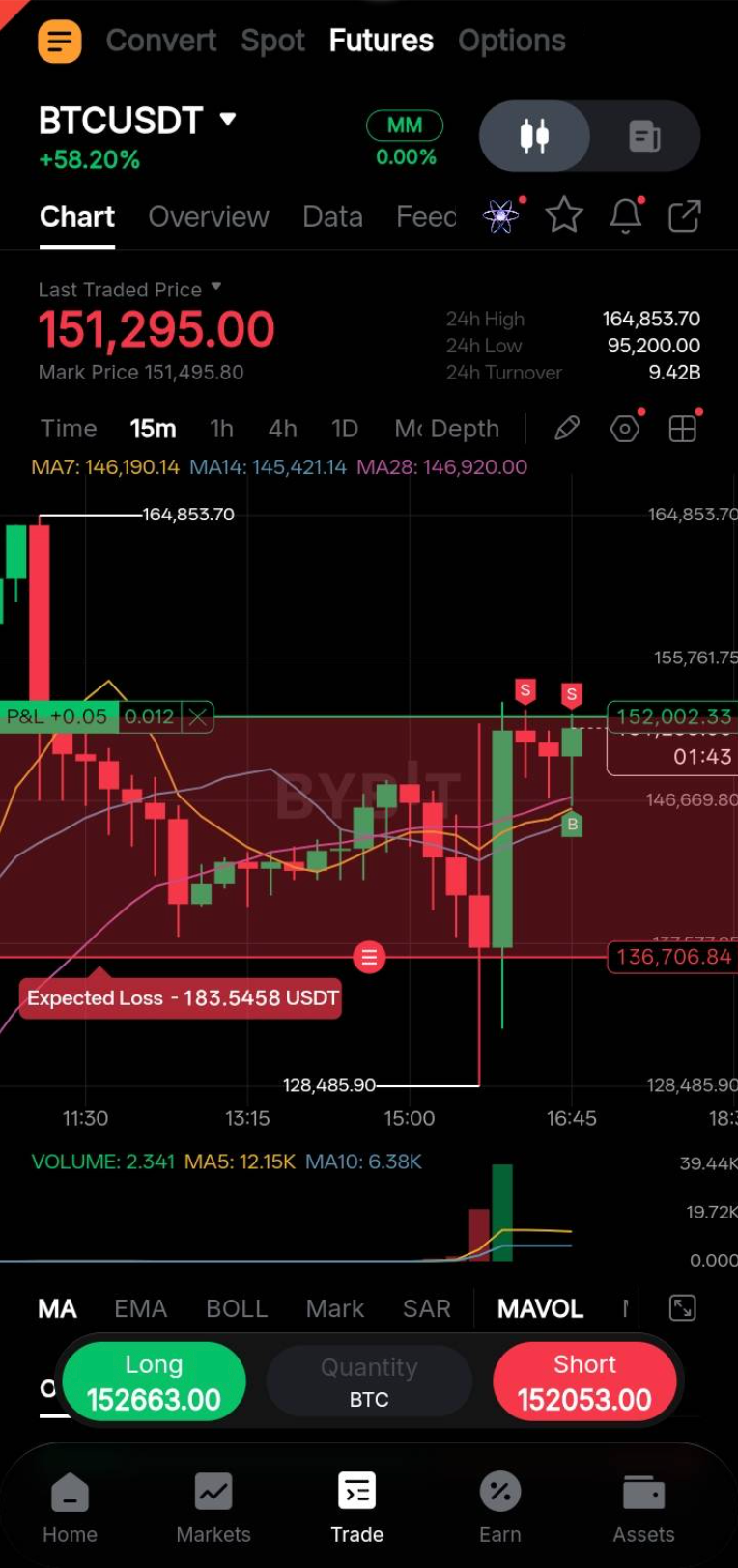
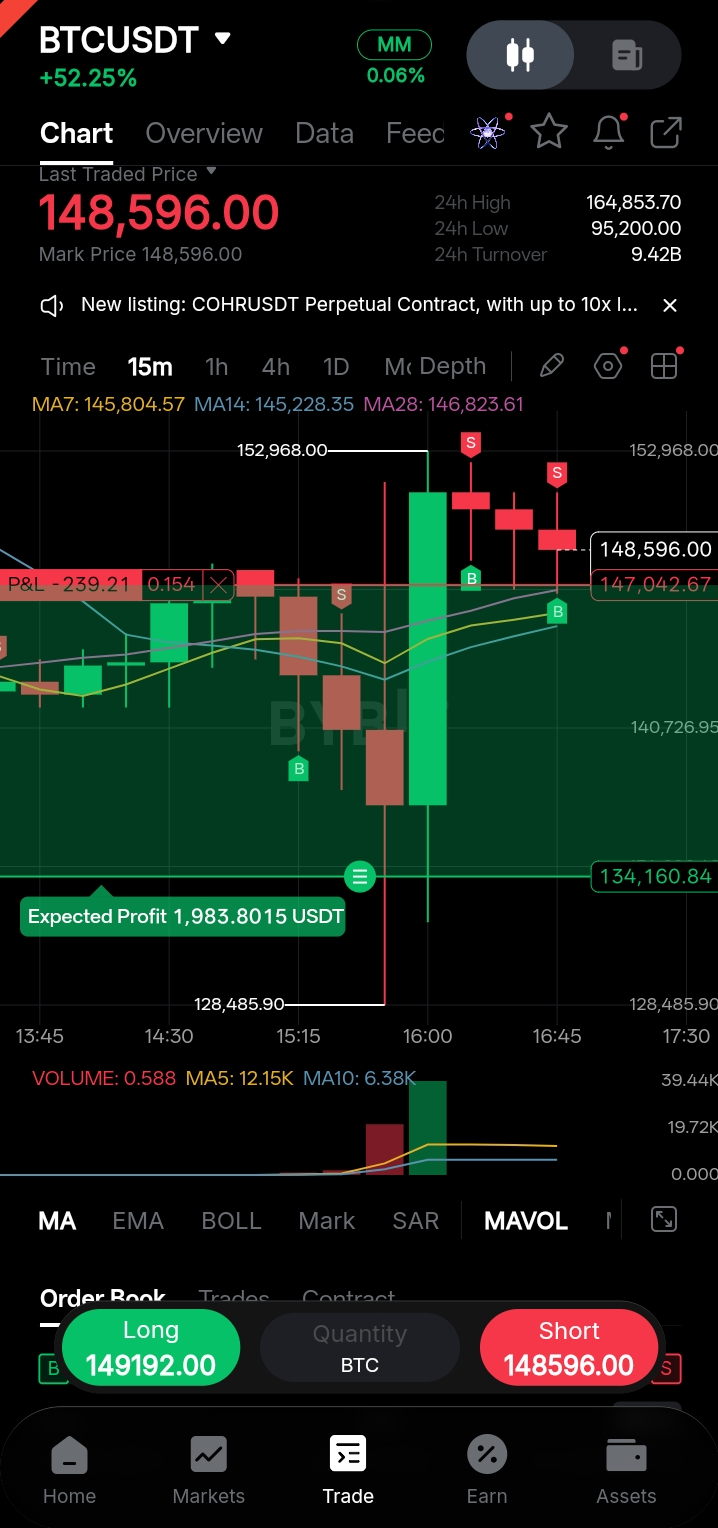
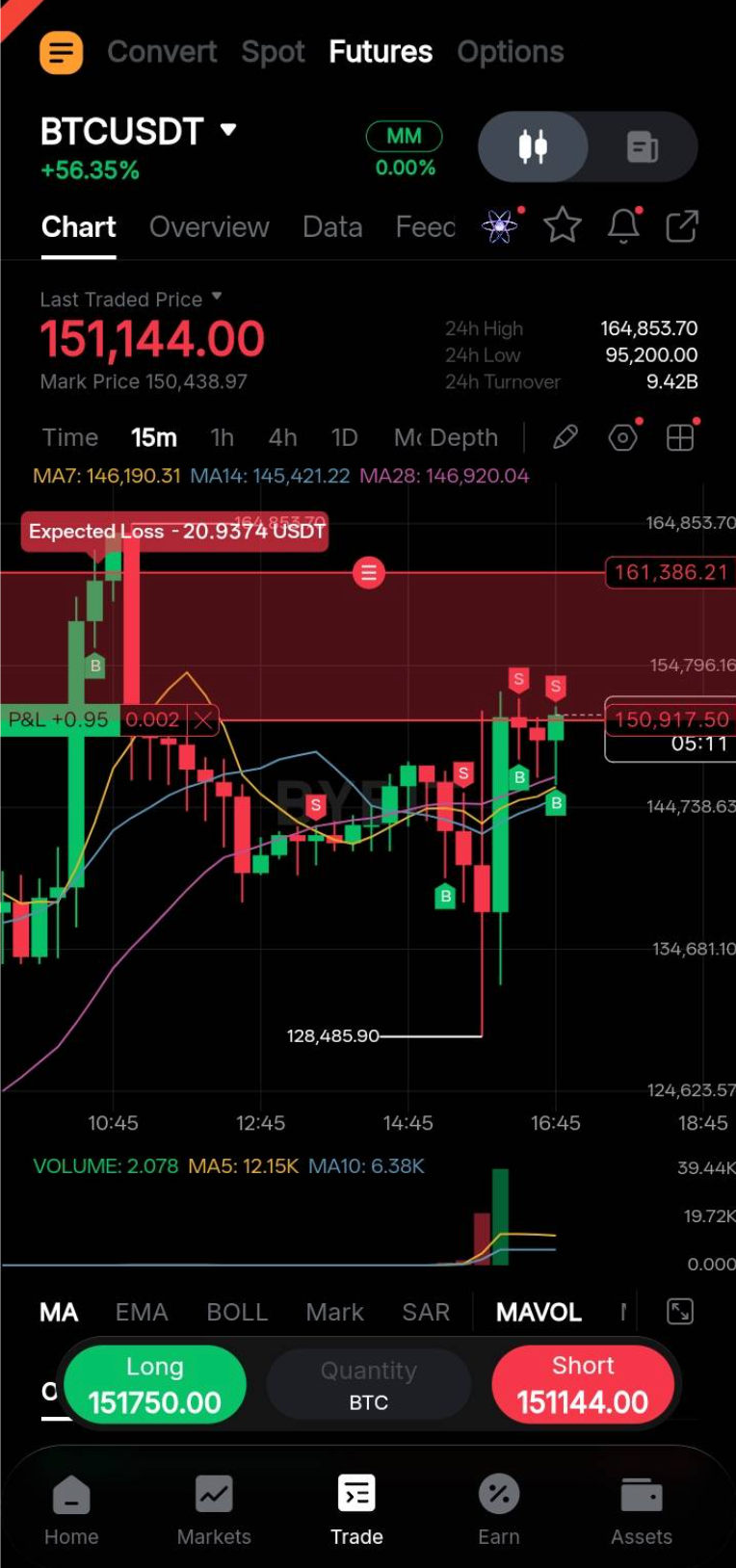
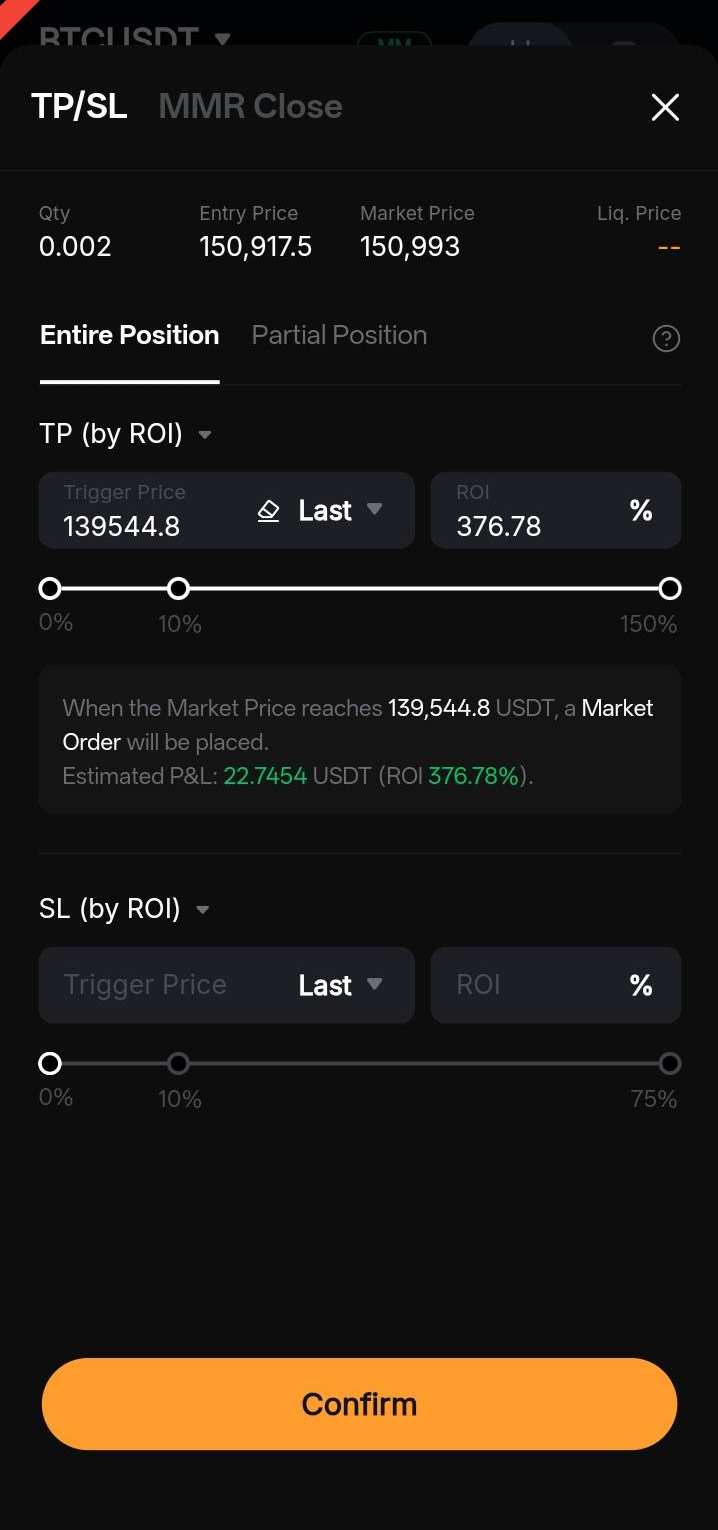
You can add Take Profit (TP) and/or Stop Loss (SL) orders to your open position by tapping the position display and dragging the ☰ handle to your desired TP/SL price.
Long Positions
To place a Take Profit order, drag the cursor to a price above the entry price. To place a Stop Loss order, drag the cursor to a price below the entry price.
Short Positions
To place a Take Profit order, drag the cursor to a price below the entry price. To place a Stop Loss order, drag the cursor to a price above the entry price.
After selecting the target price, the Add TP/SL window appears, where you can further adjust the order settings. When you're done, tap Confirm.
Important Considerations
All orders placed using quick trading features are subject to the maximum order size allowed per order. Please refer to the Trading Parameters page for the maximum order size of each trading pair.
a. Quick Open
If you attempt to place an order that exceeds the maximum order size:
- Futures: The system will automatically adjust the order quantity to the maximum allowed size per order.
- Spot: The order will be rejected. You will need to adjust the order quantity manually before placing the order again.
Please note that some symbols may have different maximum order sizes for market and limit orders.
b. Quick Close
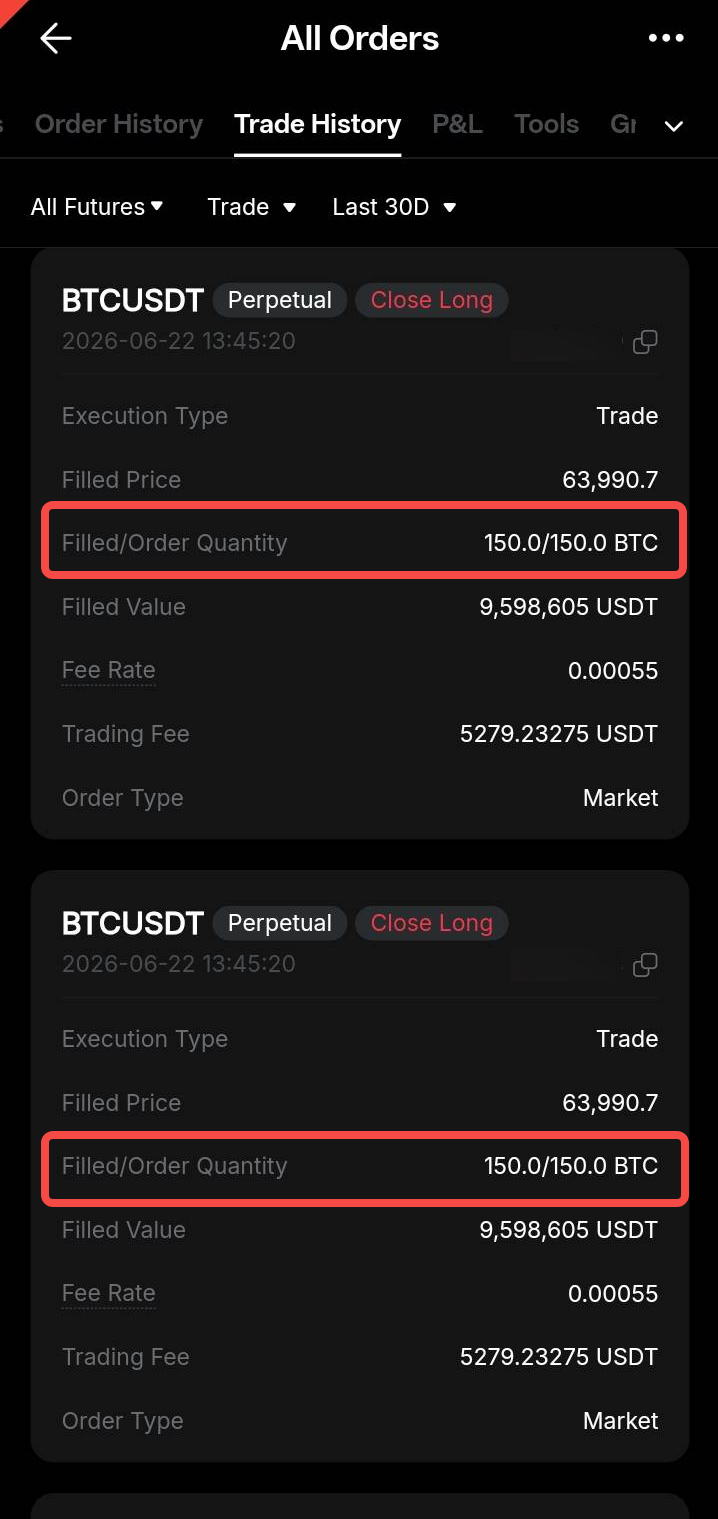
If you use Quick Close to close a position that exceeds the symbol's maximum market order size, the system will automatically split the closing order into multiple smaller market orders. Each resulting market order will have a quantity no greater than the maximum allowed order size. Please note that large market orders may experience significant slippage due to limited market liquidity.
Example:
Assume that the maximum market order size for BTCUSDT is 150 BTC. If you use Quick Close to close a 450 BTC position, the system will split the order into three separate market orders of 150 BTC each.
c. Quick Reverse
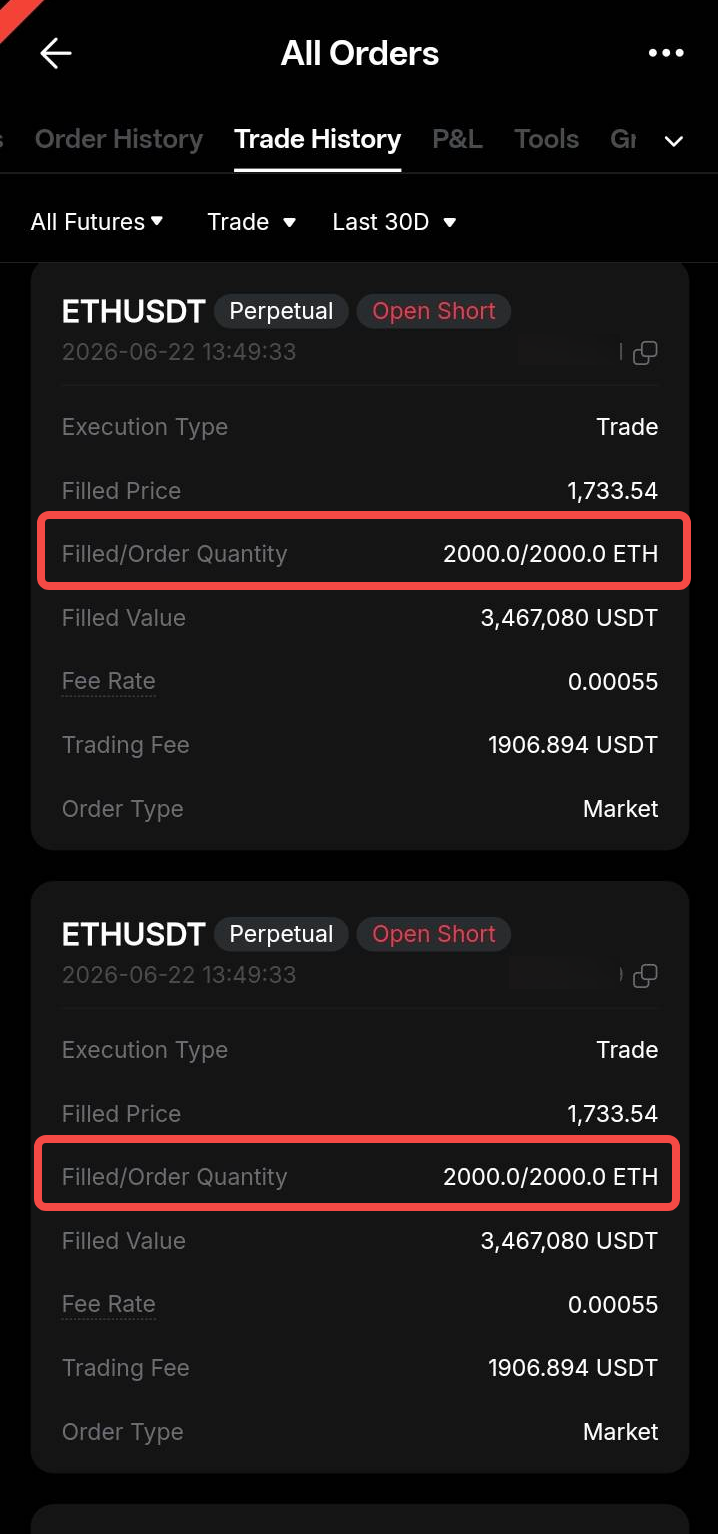
If you use Quick Reverse on a position that exceeds the symbol's maximum market order size, the system will automatically split the reverse order into multiple smaller market orders. Each resulting market order will have a quantity no greater than the maximum allowed order size.
If your available balance is insufficient or market liquidity is limited, the system may close your existing position without opening a new position in the opposite direction. Please also note that reversing a large position may result in significant market slippage.
Example:
Assume that the maximum market order size for ETHUSDT is 2,000 ETH. If you reverse an open 4,000 ETH long position, the system will first place two 2,000 ETH market orders to close the long position and then place two 2,000 ETH market orders to open the short position.
Note: By default, the order confirmation window for quick trading features is enabled. To disable it, go to Quick Order Settings.