
Mainnet account login URL: https://www.bybit.kz/app/user/security
Testnet account login URL: https://testnet.bybit.kz/app/user/security
Important Information:
1) It is highly recommended that a copy of your Recovery Key Phrase is stored securely. RKP is needed when you attempt to bind into a new Google Authenticator.
2) To ensure maximum account and asset security, Bybit Kazakhstan urges all traders to have their 2FA binded to their Google Authenticator at all times.
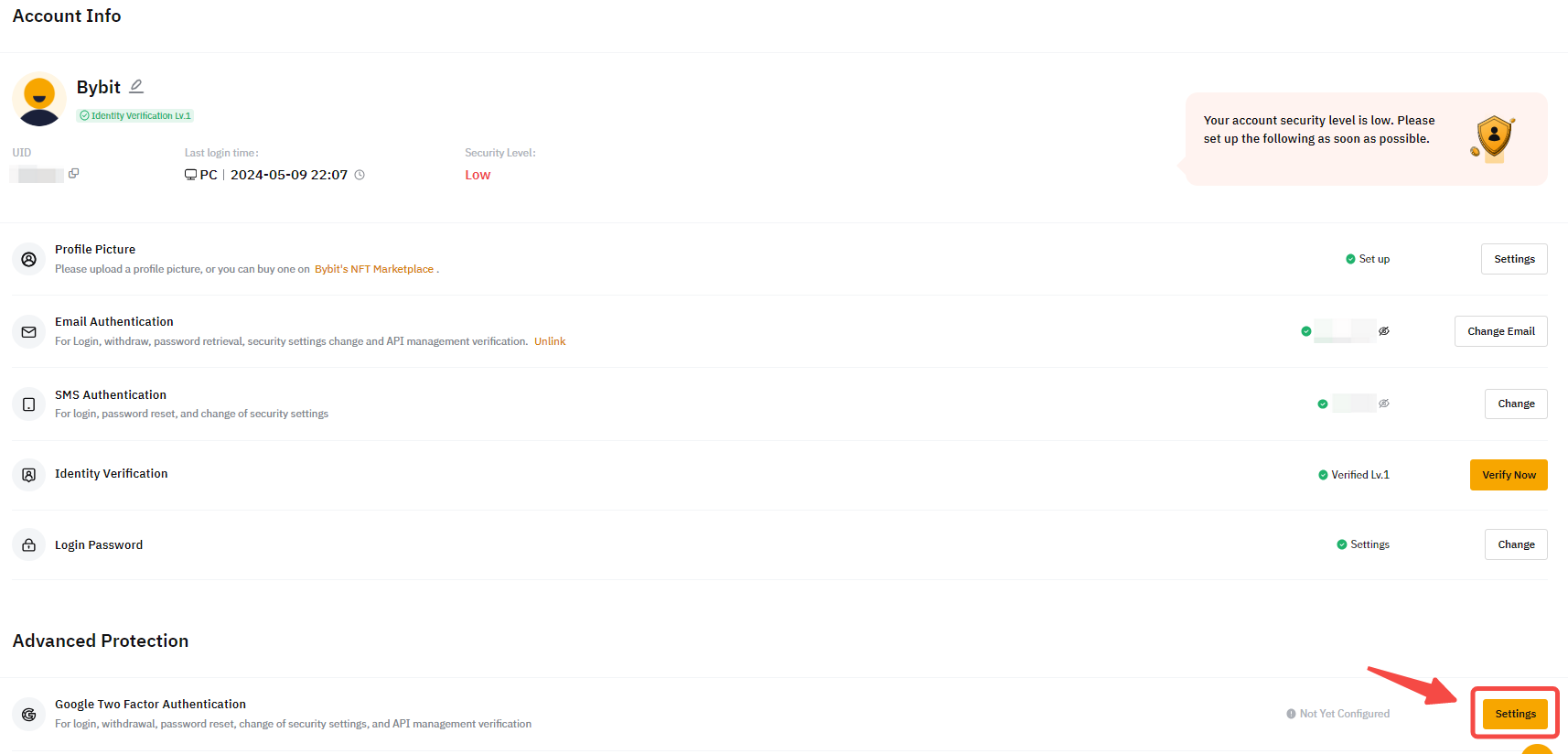
Step 1: Click on the link above to enter your account's security settings page. Perform a login if prompted. Click on the Settings button as shown below.
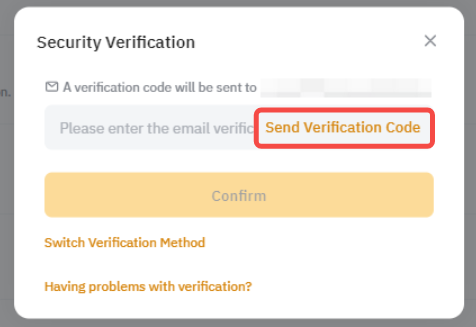
Step 2: Click on Send verification code. A verification code will be sent to either your registered email address or registered mobile number. Key into the empty boxes and click Confirm.
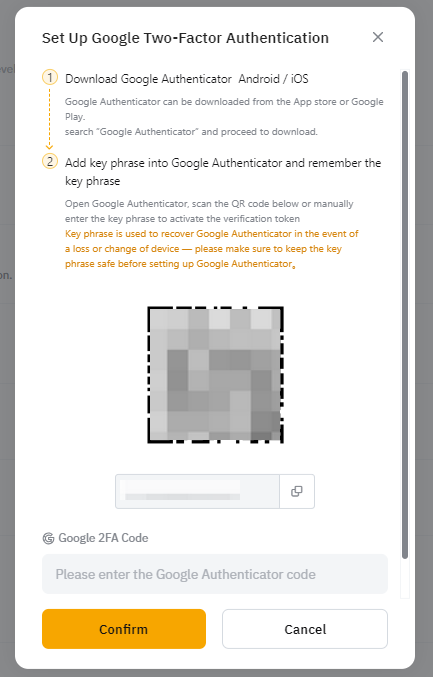
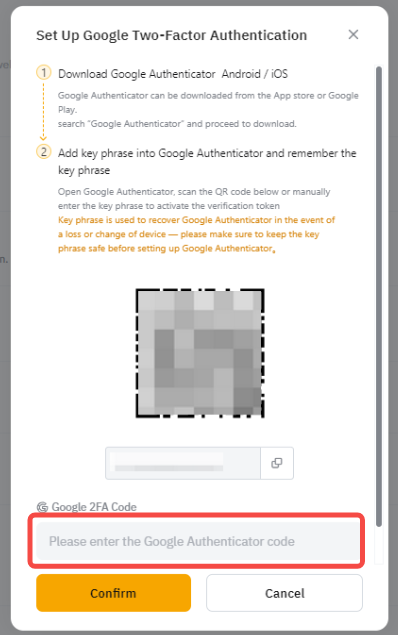
Step 3: A pop out window showing a QR code will appear. Leave it untouched first while you use your smartphone to download the Google Authenticator App from Google Play Store or Apple App Store.
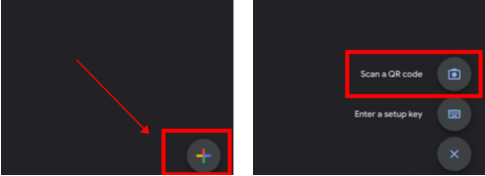
Step 4: Launch the Google Authenticator app inside your smartphone or tablet. Select the + icon and select Scan a QR code.
Step 5: Scan the QR code and a 6 digit 2FA code will be randomly generated inside your Google Authenticator App.
Step 6: Write down the Recovery Key Phrase (RKP). Store your RKP securely inside an encrypted cloud server or inside another secured device.
Step 7: Key in the 6 digit code generated in your Google Authenticator and click Confirm.
You have successfully binded your Google Authenticator to your account.