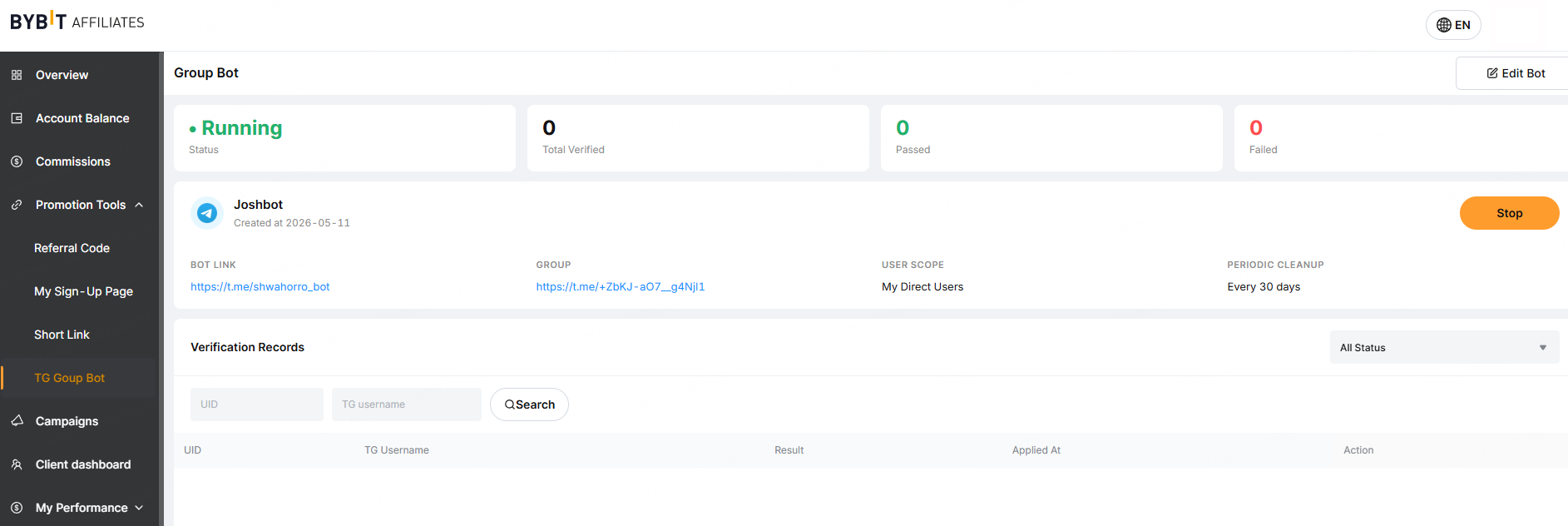
The Telegram Group Bot was designed by Bybit Kazakhstan to help Key Opinion Leaders (KOL) create and manage their Telegram communities. This bot aims to:
- Automate user approvals, rejection, and removals using a specified filter or criteria.
- Allow KOLs to customize bot responses to users, and encourage them to register using their affiliate links, if needed.
- Give KOLs the ability to manage their community by removing inactive users over a specific period of time.
How to Set Up Your Group Bot on Telegram
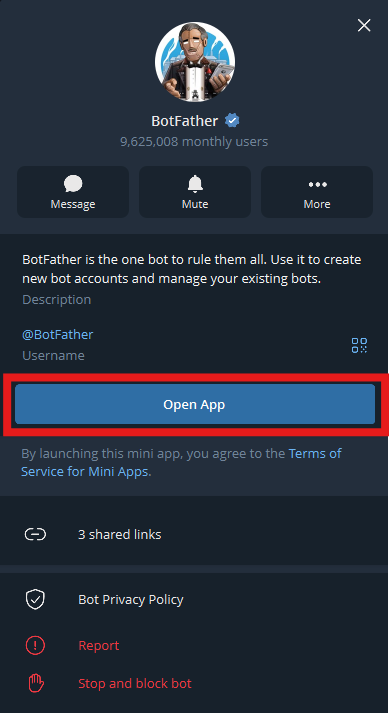
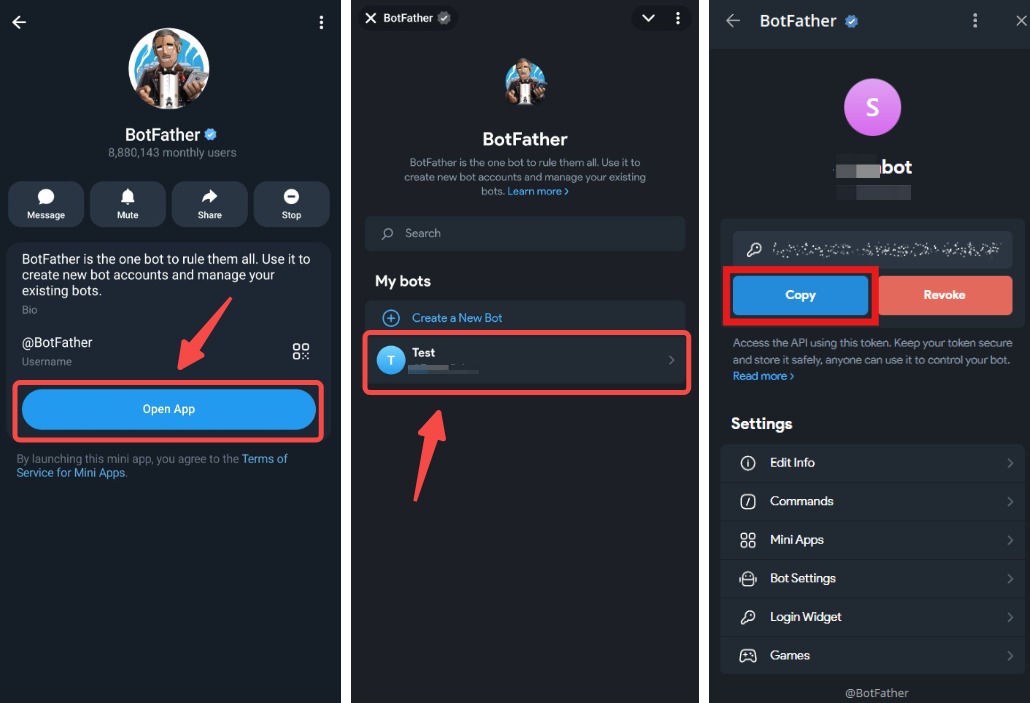
Step 1: Open your Telegram App and search for @BotFather. Open the Profile page and click on Open App.
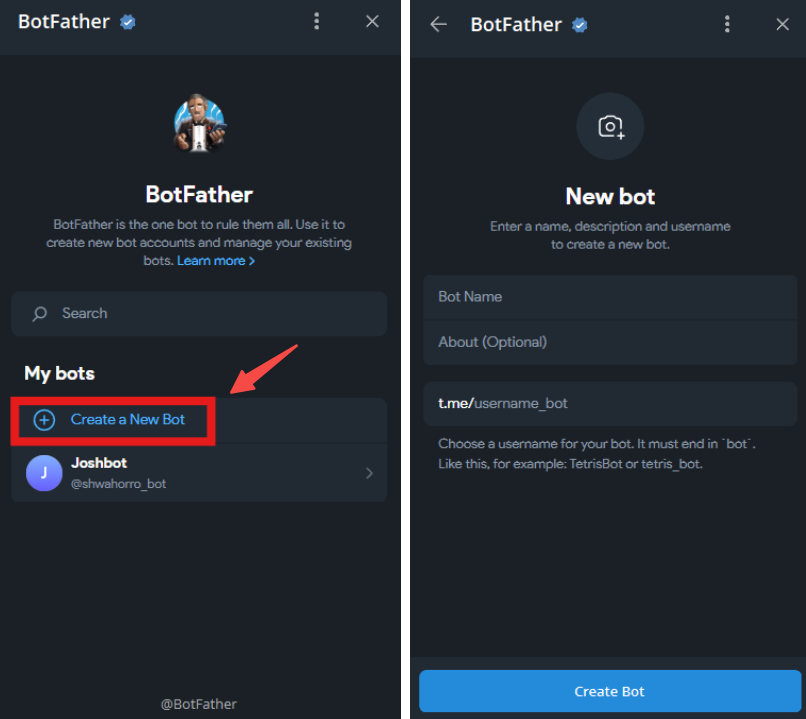
Step 2: Click on Create a new bot and fill in the necessary details. Once done, click on Create Bot.
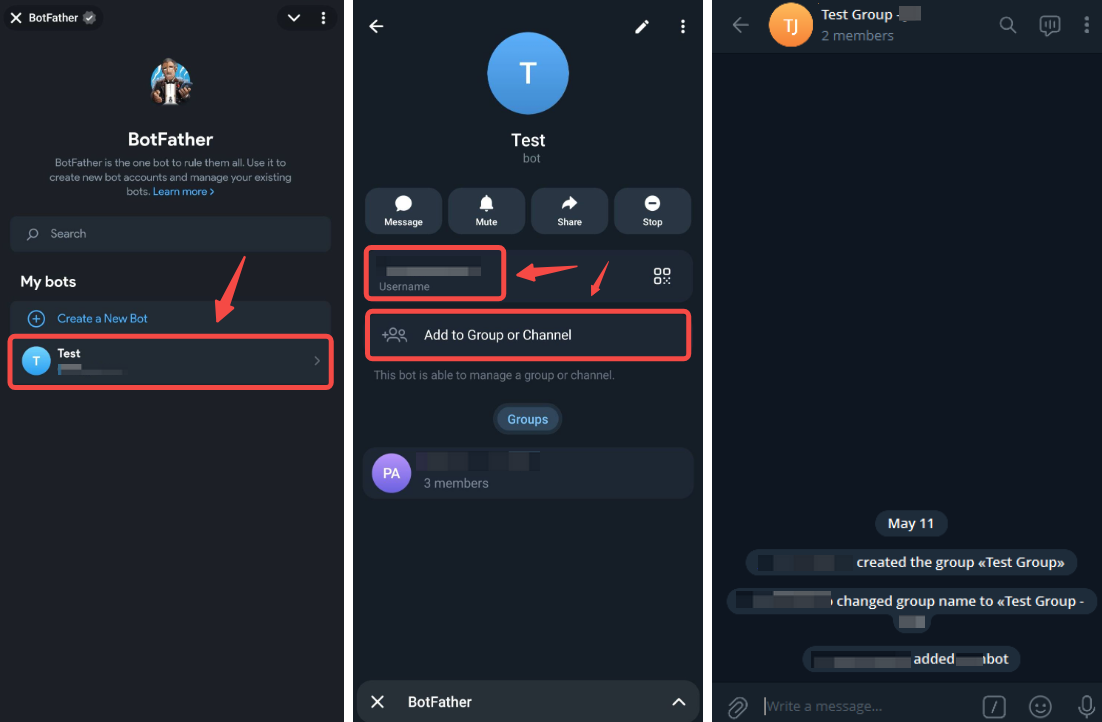
Step 3: Open your Telegram Affiliate Group, or create one if you haven’t done so, and add the bot you created as a member inside using its username. You can also click on the Bot’s profile icon and click on Add to Group or Channel.
Step 4: Set up your group and bot settings by:
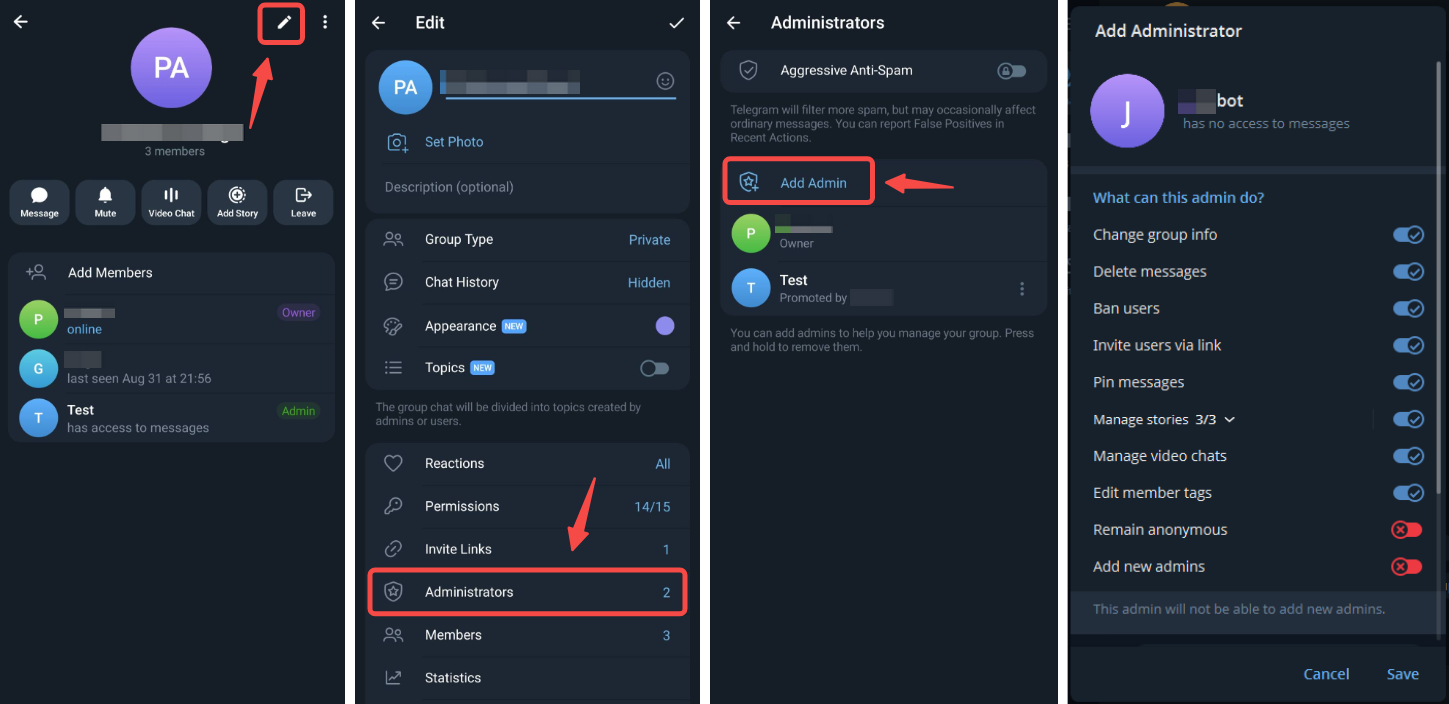
a. Granting Admin rights to the Bot
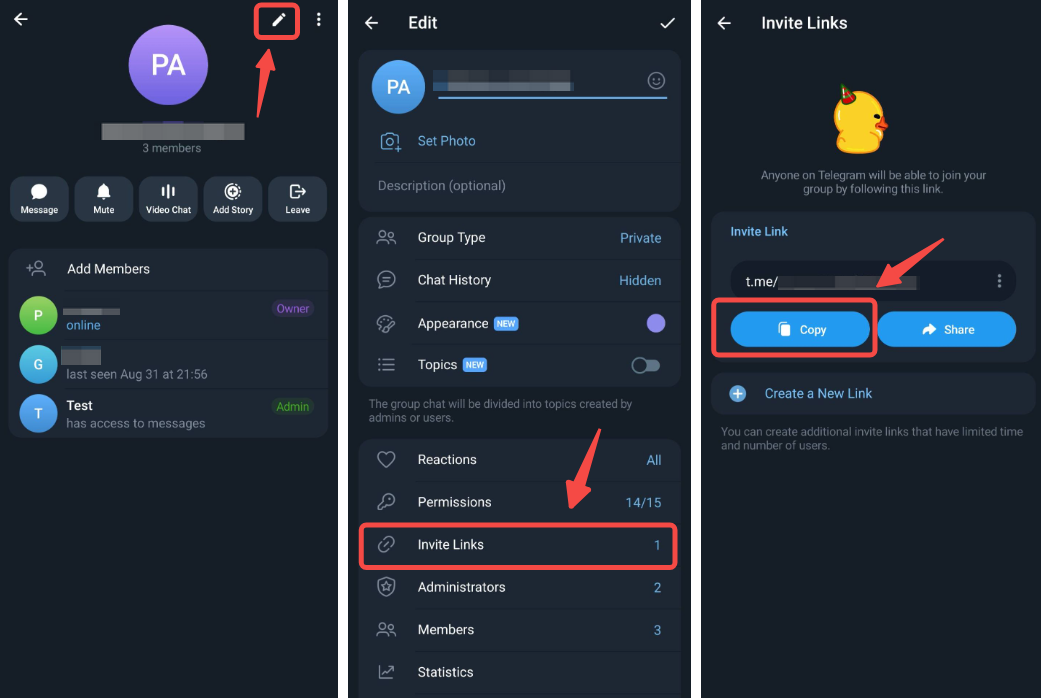
Open your Group profile and click on the edit icon in the top right corner. Click on Administrators → Add Admin to add your Bot.
b. Making sure your Affiliate group is a public group
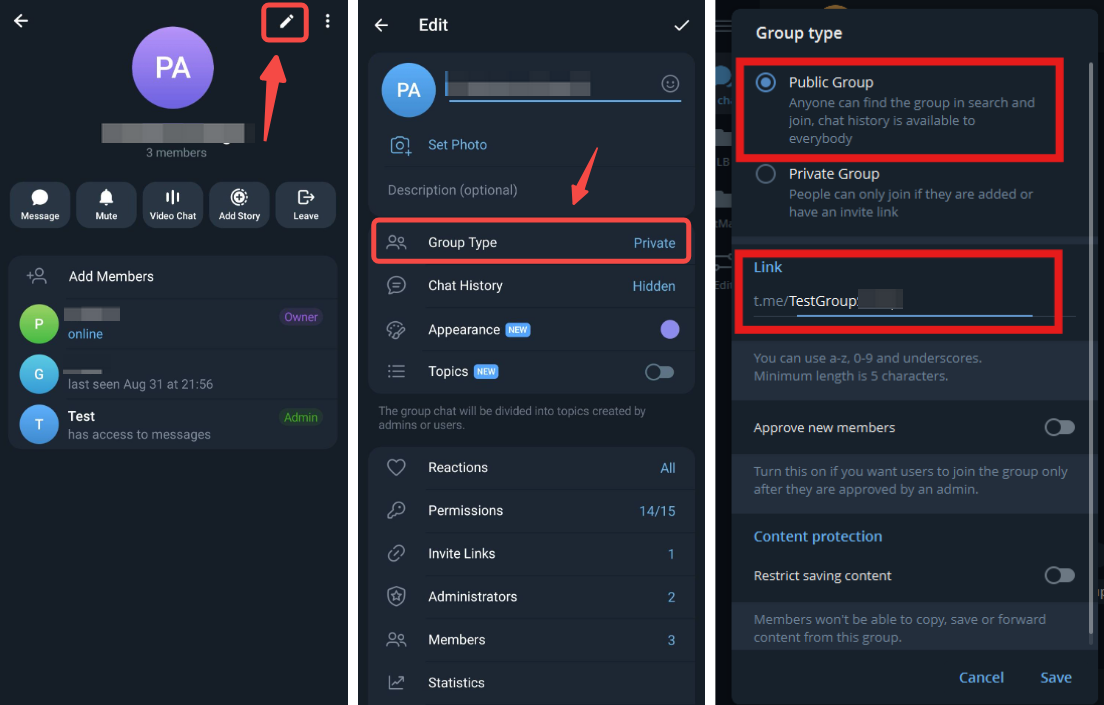
If it is not yet set up as a public group, simply open your Group profile and click on the edit icon in the top right corner. Under Group Type, select Public Group. You should also set up the group’s Telegram link.
You have successfully set up your group bot on Telegram!
How to Manage your Group Bot on Bybit Kazakhstan
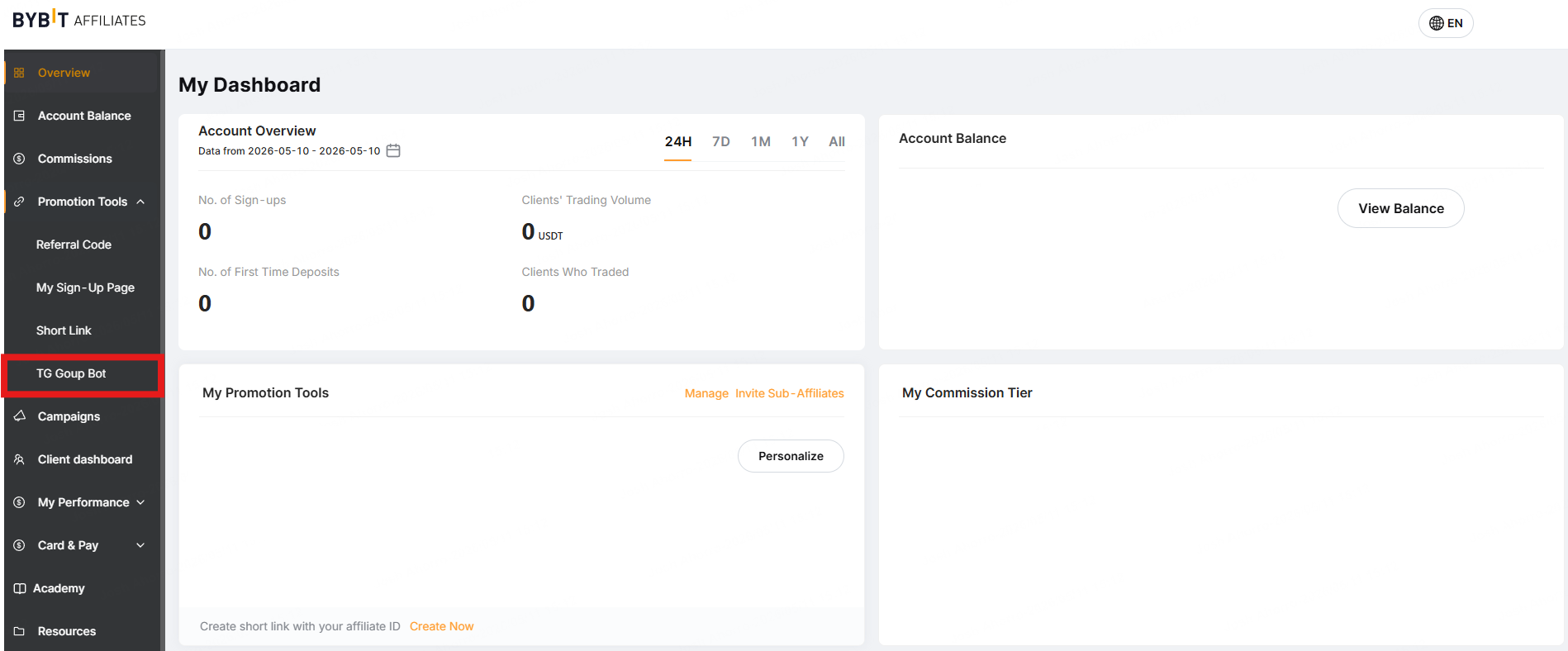
Go to the Bybit Kazakhstan Affiliate Platform and log in to your affiliate dashboard. On the left-hand side navigation, click on Promotion Tools → TG Group Bot.
When the bot creation pops up, you will be able to fill in the appropriate details:
Basic Settings
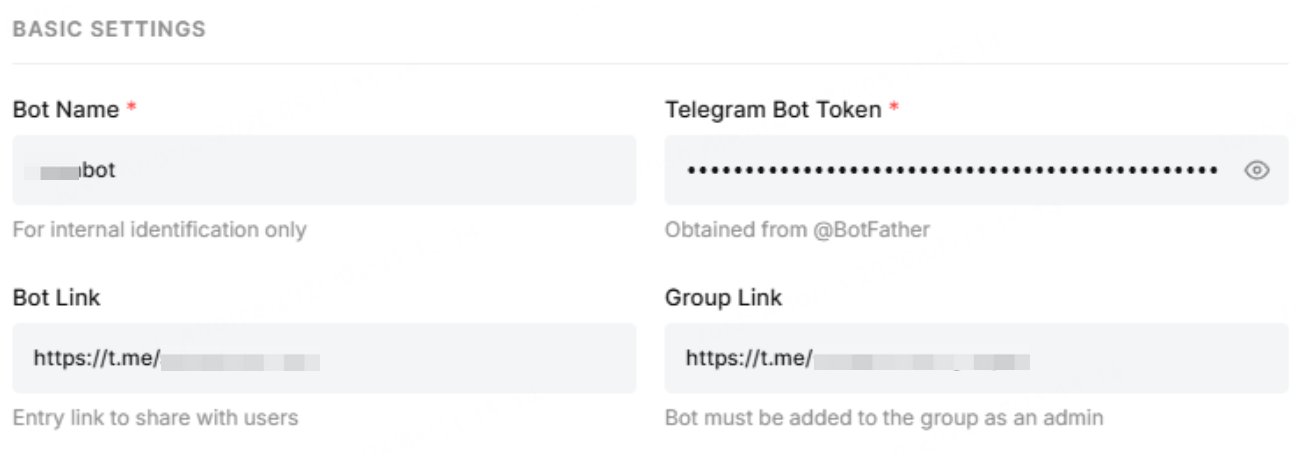
Enter your Bot and Telegram group information:
1. Bot Name: The username used for the bot.
2. Telegram Bot Token: The HTTP API Token of the bot. To retrieve it, open the @BotFather app, click on the bot of your interest and click on Copy.
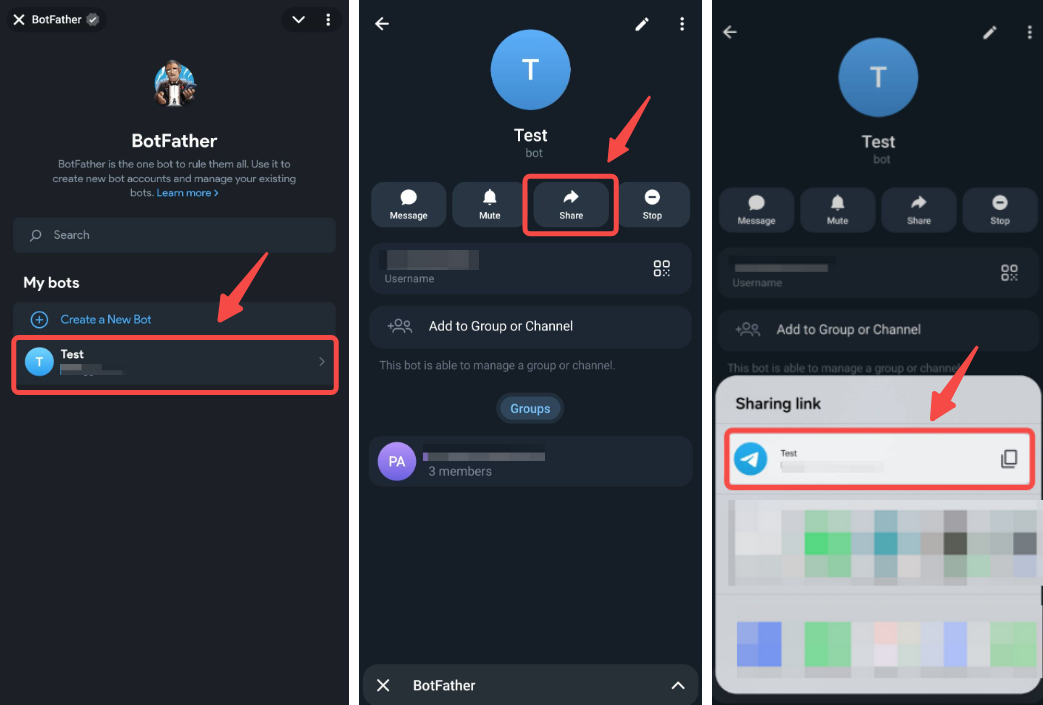
3. Bot Link: The link of the bot. To retrieve it, open the bot’s profile, click on the share icon. The Sharing link will show your bot’s link.
4. Group Link: The link to the group your users will have access to. To retrieve it, open the group’s profile, click on the edit icon in the top right corner. Click on Invite Links → Copy to copy your group link.
Verification User Scope
Select the scope of users that will be able to access your group:
- Users registered directly under me: direct users under your affiliate account.
- All users under my Sub-Affiliates: users under you and your sub-affiliates.

Verification Rules
Specify the criterias your users need to achieve so they can get access to your group.
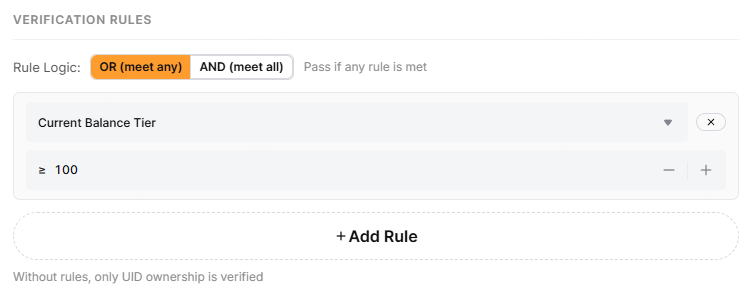
You can set up criterias based on:
- 30-day/365-day Trading Volume: Trading Volume your users should achieve within 30/365 days (in USDT).
- 30-day/365-day Deposit Volume: Volume your users should deposit within 30/365 days (in USDT).
- Identity Verification Level: KYC Level that your users should have.
- VIP Level: VIP Level that your users should have.
- Current Balance Tier: The current balance your users should have.
Notes:
— All values are calculated in equivalence to USDT.
— Please be mindful of the Rule Logic when setting up multiple rules.
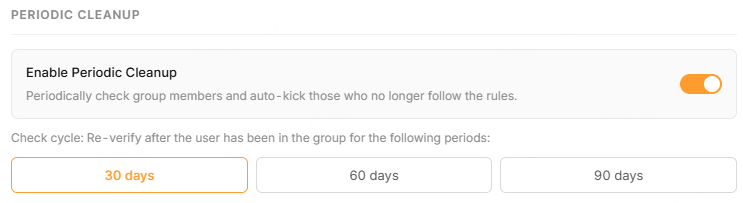
Periodic Cleanup
Once activated, this option allows your bot to check your group at every given period of time, and kick members that do not meet the criteria specified in the Verification Rules.
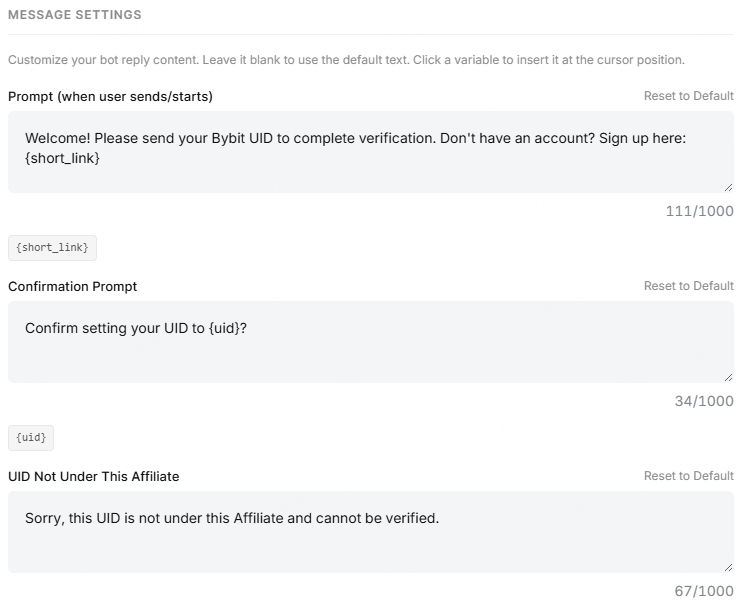
Message Settings
Set up customized prompt replies for your bot to send to your users.
Bot Analytics
After creating the bot, you will see the analytics of your bot’s progress.